
Sameer
Members
-
Joined
-
Last visited
Everything posted by Sameer
-
-
From the album: FREEDOM MODIFICATIONS
-
-
-
-
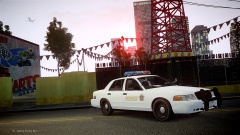 File has been uploaded and is awaiting approval.
 -
This modification is recommended to be used with ELS V8 only. Enjoy Responsibly. Obey and Survive. http://www.youtube.com/watch?v=fSrwTCie1T4&feature=youtu.be
- 37 comments
- 12 reviews
-
My advise to Kim: The world should have more PSY's and less Kim's
-
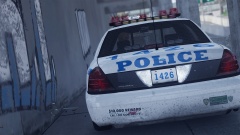 Nice shot! Can you send me a High Res shot of this pic? i would love to set it as my desktop wallpaper. :D
 -
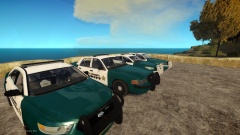 WOW! Looks great.
 -
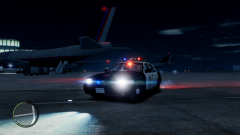
From the album: FREEDOM MODIFICATIONS
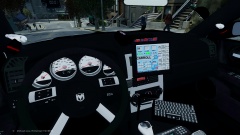
---Should be released by Saturday-- Added 2 walkie sets (one on right AC vent and one inside the console) and a clipboard (on the dash) from GTA IV. -
-
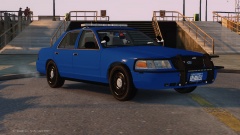 Damn! that car looks sexy! I like it..
 -
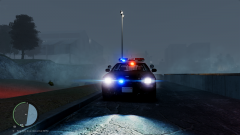 WILL GET. :P
 -
You are in for a big treat my friend! It is a DSF car and it has rotating lights! :D
-
From the album: FREEDOM MODIFICATIONS
-
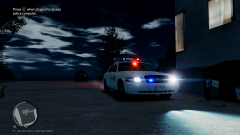
From the album: FREEDOM MODIFICATIONS
LSPD/LSSD Themed CVPI Featuring: - ELS V8 DROT compatible lightbar - Federal Signal ViperS2 dashlight by Traumapak. - 2 Customized LSPD and LSSD Liveries. - Go Rhino rambar as Extra 10. -
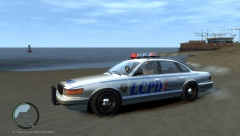 wow! what enb do you use? can i have a link?
 -
The commentary is hilarious! xD I like the way you say "cruiser" its like cruiiiser... Lol. I like the video
-
-
-
 Wow! looks cool.
 -
Wow! Everything i would've suggested is in this list, really! Nice job. I hope developers take a look and if possible add these features to the future versions.
-
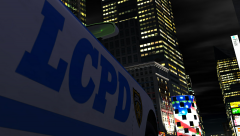 Hahaha Looks nice Stider. If possible can you maybe try to cover more of the top part of that tower? It will look more good. Otherwise you can park a car beside a tower and then try out something with the free cam mode.
 -
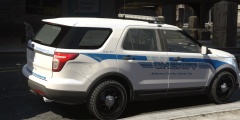 Looks beautiful..