NefariousBonne
Members
-
Joined
Everything posted by NefariousBonne
-
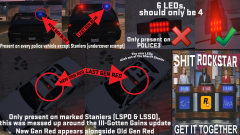 It's been a quite a while now since the release of GTA V on PC. And I'd like (even if this isn't the place to put it) bring attention to several visual bugs and errors that Rockstar has seemed to overlook in every update so far, and even adding bugs with updates. So this clusterfuck of an image is me pointing out some of the errors that plague the games emergency vehicles (police to be exact). You'd think with the police being the primary antagonist of the GTA series it would be hard for Rockstar to overlook such errors. This is very nit-picky, but come on Rockstar. I'll be sending feedback to Rockstar, but it would be nice if you guys raised hell. TL;DR On almost every police vehicle the rear right blue light uses the last gen Blue, instead of the new gen Blue (Noticeable during nighttime) The wing mirror light on the POLICE3 uses the last gen blue as well (but doesn't look as awful)The rear LEDs on the Sheriff Stanier/Cruiser clip through the roofMarked Police Staniers utilize both the last gen and new gen red corona on Rockstar's Arjent / LED lightbar >Not present on the Halogen bar; wasn't an error until around the Ill-Gotten Gains Update The police interceptor (POLICE3) uses 6 LEDs on the side, where there should logically only be 4 (Not pictured) POLICE3 should use the livery that the Police & Police2 use; not the generic "POLICE" [Universal attention, just thought I'd add to the circle jerk]
 -
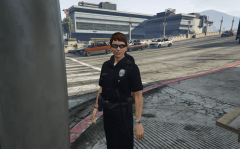 I love the generic-ness of it.
 -
Basically, I took the LSPD uniforms into Photoshop, and an hour later the female cops will now have the same uniform as their male counterparts. Some things such as pockets are slightly displaced due to how Rockstar mapped the textures.
-
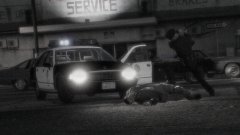 Just another day in Los Santos
 -
 You have a neat concept, but your design would be the one that Clusterfuck-ville would use, if that was an actual place.
- 3 comments
- 7 reviews
-
-

- 1
-
-
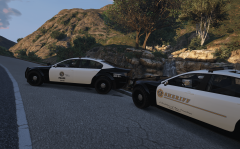 The LSPD and LSSD are testing out their new toys. Download here: http://www.lcpdfr.com/files/file/8657-standalone-cheval-fugitive-ppv-pack/
 -
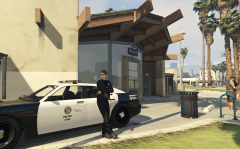 I can't find any pictures, but do the LASD even have uniform hats? I've found helmets that motorcycle sheriff's use, but that doesn't really count.
 -
In addition to the hat being ugly, the badge on the hat doesn't make sense: Real LAPD hats have a eagle badge thing, while the LSPD hat uses the LSSD badge. I don't know what Rockstar was smoking, but I want some
-
I replaced the default (s_f_y_cop_01_p) with "g_f_y_lost_01_p", which is a series of sunglasses. The female Lost member and the female cop have a similar build, so the glasses are positioned correctly on the model.
-
An LSPD officer hangs around the beach before heading out. On preview is the brand new mapped Buffalo by Yard1, and some new sunglasses instead of that stupid hat.
-
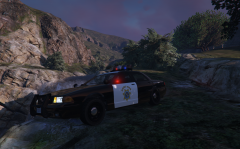 ¯\(ຈل͜ຈ)/¯
 -
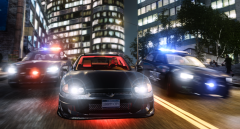 I'm getting a Need for Speed vibe from this
 -
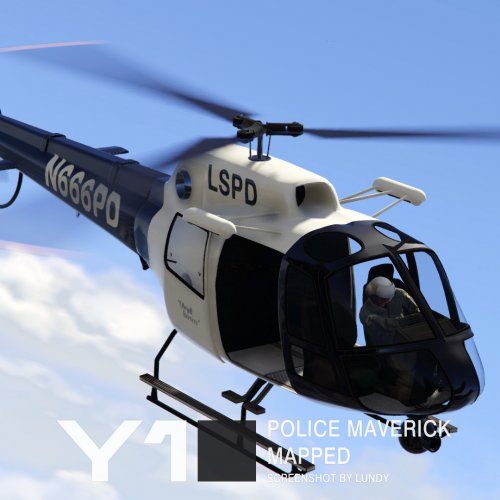 While I think the default mapping for the police maverick is sufficient; this allows for far more advanced, and beautiful designs. Great work as always Yard1
- 21 comments
- 2 reviews
-
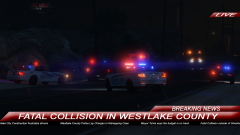 You pictures never fail to amaze me, keep this up. The car collision may be sad, but on the plus side at least the budget is back on track I was getting worried #TulvisStillSux
 -
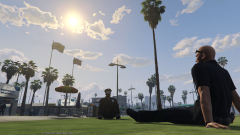 I don't know why I find this so funny
 -
Ah okay. At least you've got it working now... To remove them from roaming you'll need to modify popgroups.ymt; Which is in: update --> update.rpf --> x64 --> levels --> gta5. I've included a popgroups with the police2 removed from VEH_COPCAR (City cop group;LSPD). popgroups.ymt
-
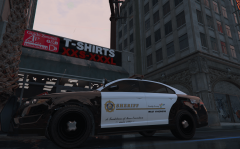 It's kind of a crucial detail. Do you like my slogan?
 -
See if this one works. This one is completely vanilla with the change you wanted (no Police2 / Charger) dispatch.meta
-
That's strange... but GTA V can be very fussy at times. All I did was swap out the 'Police3' for 'Police2', are you using any other mods that may conflict?
-
The newest addition to the LSSD's fleet. Able to quickly transport officers to beat down hipsters and members of the LGBT community, despite claiming to be an ally... Grimes and Kirkman are ready for their new post. Based upon LASD West Hollywood cruisersFun Fact: West Hollywood contracts with the LASD Lore: West Hollywood = West Vinewood
-
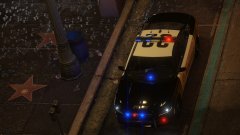 ...And the metaphorical shit has hit the metaphorical fan.
 -
Yes sir. 'Police' and 'Police3' will spawn in the city during a wanted level, leaving 'Police2' out so that you can be unique. 'Sheriff' will still spawn in the countryside. I hope that is what you wanted. (Also don't shy away from future requests, I love doing this :3) dispatch.meta
-
-
Ah; I must of missed that, danke.
-
Yard1 is a wizard and I'm getting a Need for Speed Most Wanted vibe from this. To be canon to real CHP cruisers, the LED's in front should be all red, but that's just being picky good work Yard1!