Stealth22
Friends of LSPDFR
-
Joined
-
Last visited
Everything posted by Stealth22
-
-
-
Plugin has been released!
-
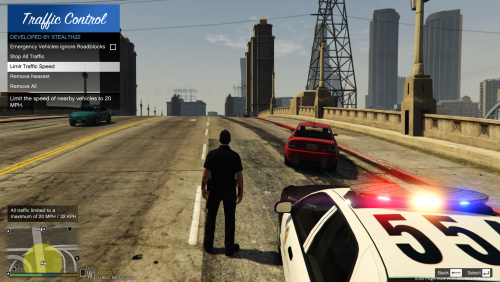 Traffic Control for GTA V Copyright (C) 2018 Stealth22. All rights reserved. Any unauthorized modification, reverse engineering, or distribution (including re-uploading of any kind) is strictly prohibited. Requirements You must have version 0.63 (or newer) of RAGE Plugin Hook. You must have a fully legal, non-pirated version of GTA V. Automatic Installation - Extract the ZIP archive; ensure that setup.exe and Traffic Control.msi are both in the same folder - DON'T run Traffic Control.msi unless you know what you're doing - Run setup.exe, and ensure that the installation directory detected matches the main/root folder of your GTA V install directory - If setup.exe is unable to detect your GTA V directory, or fails in some other fashion, start Traffic Control.msi, AND SELECT YOUR GTA V PATH AS THE INSTALL DIRECTORY Manual Installation - Copy the TrafficControl.dll and TrafficControl.ini files into the Plugins folder of your GTA V directory. - Copy the Stealth.Common.dll and RAGENativeUI.dll files into your main/root GTA V directory. Features - Stop or slow down all traffic within a certain radius of the player, in order to close a road for investigative purposes, or for safety reasons during a traffic stop - Multiple "roadblocks" or "speed zones" can be placed - Roadblocks will remain in place until removed by the player - A (beta) setting to allow any emergency vehicles to drive through "roadblocks"/"stop zones" can be enabled in the INI file ("Stop Traffic" orders only; speed restrictions are not affected) - The above setting can also be changed on-demand through the new in-game menu [NEW!] - Traffic Control now includes a new in-game menu, powered by RAGENativeUI! [NEW!] - Keyboard shortcuts can now be changed in the INI file! [NEW!] - Keyboard shortcuts can be disabled, if desired (to use the in-game menu exclusively) [NEW!] - Integration with Police SmartRadio! Usage - Press the menu keybind (CTRL + F10 by default) to open the Traffic Control menu; use the menu options to place/remove roadblocks - Alternatively, you can use the shortcut keys (see the INI file) to place/remove roadblocks - Keyboard shortcuts can be disabled through the INI file, if you wish to only use the in-game menu Forum Thread http://www.lcpdfr.com/forums/topic/51961-rel-traffic-control-beta-close-off-the-road-while-you-investigate-and-clear-a-scene/
- 338 comments
- 46 reviews
-
-

-

- 43
-
-
Many thanks for that! Oh, I had a question for you! Expect a PM in a few minutes...
-
Great idea! I think I'll do that. It won't be in the very first version, but I don't see this being that difficult. I still need to test this heavily though. I have not tried stopping traffic and then pulling out a gun and shooting, so I don't know how the AI will react. It remains to be seen whether the NPC civilians will continue staying stopped, or if their panic attacks will override it.
-
Ask, and you shall receive, my friend.
-
Hi folks, Please be gentle, as this is my very first script mod. One of my biggest frustrations is having to clean up a scene (after a pursuit or shootout), only to have traffic driving through the crime scene, hitting vehicles, or worse, police officers. If either the player or an AI officer gets hit, the AI officers go batshit, and start shooting at that car. The NPC civilians then go batshit, driving over anything and everything to get the hell out of there. This might be implemented by the LSPDFR team later, but for now, to try and help mitigate this, enter my new Stop Traffic mod! As the name implies, this plugin will stop all traffic within a certain radius of the player's location when the mod is enabled. All cars will come to a stop, and will remain stopped until you hit the assigned key again. I may also make the mod disable itself automatically if the player goes too far from the scene, and I am also looking at customizing it a bit more. For instance, maybe the officer can choose whether to simply slow down traffic (and then use barricades to close one lane), or close the road entirely. This script is being developed for the Rage hook, and I am currently testing it. I also need to add things like the ability to change the default key, and perhaps controller support. But mainly I want to make sure it works properly. I don't want traffic being stopped/started repeatedly while entering names into the new LSPDFR 0.2 laptop, for example. I expect this to be released fairly soon, though, at least as a beta, anyway. If anyone would like to help me out with testing, feel free to post here. I have not yet decided whether to do a limited beta testing period, but if I do, I might send it to a few people before releasing it to the public. Screenshots: http://imgur.com/JqNTsIJ http://imgur.com/lxZcL18 http://imgur.com/kAQLwMZ Special thanks to gamepro552 for giving me the inspiration to create this! Known Issues - Unfortunately, if you impose a speed limit, or stop all traffic, all NPC support vehicles, including, but not limited to tow trucks, coroner vans, AND backup POLICE UNITS will ALSO OBEY these restrictions. There is currently no known fix for this issue, but both FinKone and I are working on it. UPDATE (AUG 13, 2015) - This issue has been resolved in v0.5.0, but it is still experimental at this stage, and is disabled by default. The feature can be enabled in the config file.
-
 God damn it, I was going to do one of these, but you beat me to it! I'll have to try this one out, but from the sounds of it, looks like some great work!!
- 477 comments
- 73 reviews
-
-
- 2
-