
googleplex2010
Members
-
Joined
-
Last visited
Everything posted by googleplex2010
-
 lol
lol -
Agreed, but the tail lights and reverse lights bug me the most the DSF tail lights and reverse lights are too boxy and pointy:http://www.lcpdfr.com/screenshots/monthly_11_2014/09b69d0cc33019f49463564acd19fbc0-pic4.jpg
-
The dsf model is complete crap its to boxy and rigid compared to the other versions of the schaefft model. if the tail lights and boot were updated and the head lights and bumper too the model would be just fine.
-
Hence why the schaefft model is the best and so is various others i will not name.
-
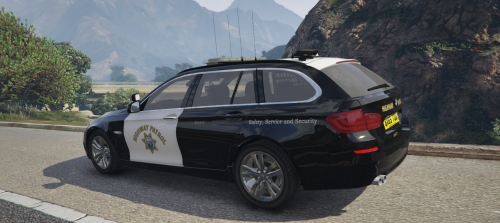 You didnt even bother to remove the reflective tape, i mean if you're gonna spend time on it make it look good.
- 5 comments
- 5 reviews
-
-
-
Laws and copyright dont stop people from doing bad things.
-
Well its cause its a mac
-
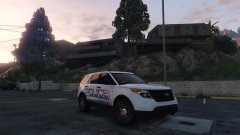 What ar dose!!?!?!?
 -
 I didn't know my daughter was my wife.
 -
Patience is a bitch kids!
-
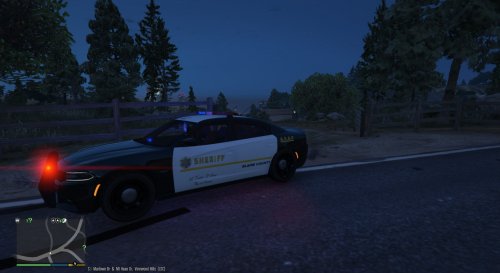 Its ok, its obvious where the copy and paste is and where the stuff you put in.
- 4 comments
- 3 reviews
-
-
 woah we're on 3 now! oh wait it trent in costume
 -
 Ha nice though
 -
Nice job exploding the gallery with 5000 pics!
-
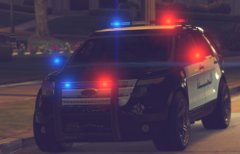 you know sometimes I wish I could but it dosen't feel right to let another person erase the time and the frustration of making that model perfect. You must feel the same, sometimes when you make a video or even a texture people could and will re-upload the time and dedication to that one piece.
 -
But do you have perms?
-
-
The first version that they used and then stopped using because of viewers saying that they were stolen.
-
That is a completly different model.
-
He shot himself
-
Those cvpis were stollen from ironic by officerunderwood and some other low life. The didnt make the original model.
-
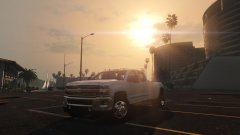 This pic seems familiar...