
CrossFire
Members
-
Joined
-
Last visited
Everything posted by CrossFire
-
 WTF That dog looks demonic
 -
-
Any Tahoe is great for me.
-
Damn!!! How many polys?
-
Ummmm it is... http://en.wikipedia.org/wiki/Public_holidays_in_Mongolia He's not trolling.
-
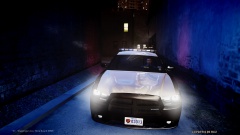 This one is good!
 -
We still have one car in service from the '60's
-
I don't think there was ANYTHING wrong with what the officers did, although I did notice the cameraman did. If you're arresting someone and they resist, you're going to do anything you can to get them in custody, and obviously the cameramen didn't understand that. The suspect said that she broke her tooth, not in anyway the officers fault, it's all on her, if she didn't resist, she wouldn't have a broken tooth right now.
-
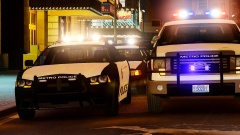 And you do not use Anti-aliasing?
 -
Please read the above posts.
-
I don't understand.
-
Hello fellow Alabamian. Also, My department:
-
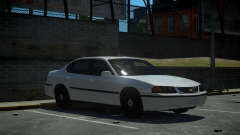 Where in the hell did you get one of those?
 -
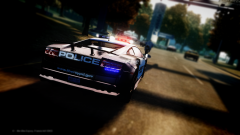 DAT ENB
 -
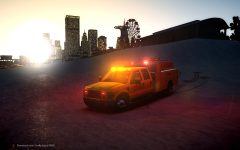 So that's what you and Pengi were talking about last night!
 -
Bit rude, it's not him, it's your grammar
-
I would be too!
-
DAMN that's creative!
-
They look identical because they all use the same default file, the one from default GTA, I change most things in it with my ENB's.
-
But then if he plans on using ELS again, the lights will look like crap
-
-
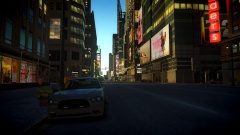 Nice pic. Nice car. Nice ENB.
 -
-
It's close to the edge
-
'?do=embed' frameborder='0' data-embedContent>>