




CrossFire
Members
-
Joined
-
Last visited
Everything posted by CrossFire
-
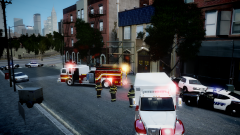
From the album: CrossFire's Pics V2
Oak Beach Emergecy Services responded to a car wreck this morning. The caller claimed that the driver was a police officer. Emergency services then stepped it up. When they arrived on scene they found a white Ford Crown Victoria Police Interceptor that had hit a tree. Deputies of the Oak Beach Sheriff's Office later determined the driver of the vehicle was not a law enforcement officer. After being brought to the hospital, he passed away 4 hours later. -
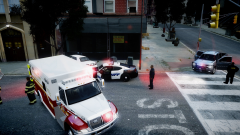
From the album: CrossFire's Pics V2
Oak Beach Emergecy Services responded to a car wreck this morning. The caller claimed that the driver was a police officer. Emergency services then stepped it up. When they arrived on scene they found a white Ford Crown Victoria Police Interceptor that had hit a tree. Deputies of the Oak Beach Sheriff's Office later determined the driver of the vehicle was not a law enforcement officer. After being brought to the hospital, he passed away 4 hours later. May or may not be V8.... -
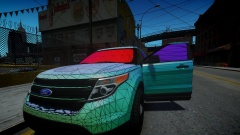 Very nice Peng!
 -
Shit like this doesn't happen in Battlefield.
-
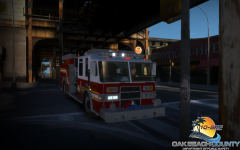 Nice picture Tmb! I can't believe that's only a timcyc mod though...it really looks like an ENB.
 -
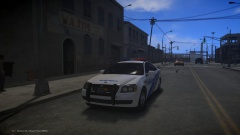 "10/10 would use" -Someone who knows nothing about a Caprice but loves police cars.
 -
http://www.l c p d m o d s.com/files/the-killer-enb.66/ Take out the spaces then copy and paste it in the browser.
-
-
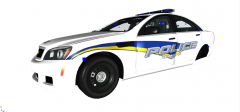 He's saying it would be better to use it because you made it.
 -
HAHA read the OP!
-
Yes, I know. If you look at the post above the one i'm quoting, you'll see that I provided you with a link to the actual ENB. You may have saw it, but I was just making sure.
-
Just drag ALL of the files into your main game directory and you'll be good. :) Did you notice that he wasn't asking for a good ENB, but for a link to the ENB in the pictures he posted?
-
Neither of those are it. TheKiller7987's ENB can be found HERE.
-
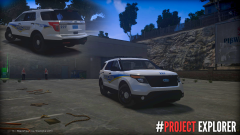 Also, don't forget the Vertexes where the foglights are!
 -
 Seems so! I feel like a nice thing is coming!
 -
Didn't know B'ham used PIs. I guess I just haven't seen them yet.
-
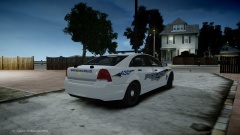 If the certain individual who you received the Chevrolet Caprice Police Pursuit Vehicle from says it is okay to release, then I think you should release it.
 -
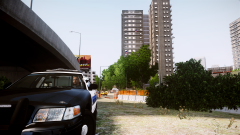 You may be wondering: Why isn't he using a script? My answer is: If you're going faster than all of the other cars, you're speeding.
 -
From the album: CrossFire's Pics V2
'Nuff said. -
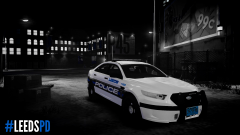 I've always wanted that PI to be made, I just love the wrap-around! The liveries are awesome too!
 -
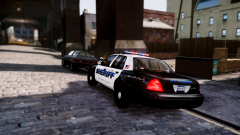 The un-edited version:
 -
Thanks!
-
-
From the album: 10-8RP
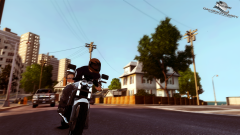
Yep! New ENB! (The blurring is not with the ENB but with me editing it.) -
 Generally I use JPG, but today I used PNG.


