



Chris780
Members
-
Joined
-
Last visited
Everything posted by Chris780
-
-
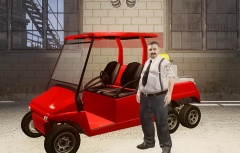 Real nice!
 -
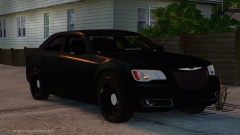 Really great lighting setup!
 -
![[WIP] 2008 Ford Explorer](//s3-gallery.int-cdn.lcpdfrusercontent.com/gallery/album_2619/sml_gallery_928_2619_92966.png) Fantastic!
Fantastic! -
Also check how many Misc's you have as well. Try not to have many. And attach objects to your bodyshell, etc
-
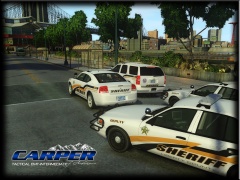 Pitt county?
 -
Just remove the lights and equipment from the model hierarchy. Then just delete the polpatriot.wft and reimport the vehicle and add the lights and equipment back into the 'new' hierarchy. I hope that made sense.. Also make sure your exporting the file with the same name that it is in zmod. ie; if it's polpatriot.wft in zmod, make sure your exporting it was polpatriot.
-
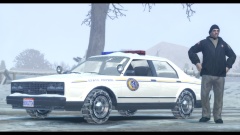 Love the snow on the car
 -
Ya know. I really didn't know what to comment on this. I've never seen any of this before and it's by far the most disturbing thing I've seen.Why? Because I can relate. I'm sure we all can. We all(for the most part) want a future in this career. It really goes to show that what we're getting into is real and is scary.
-
-
-
-
Absolutely brilliant
-
-
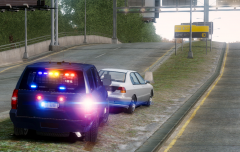 It should be lifted slightly. That's how the CITE vehicles work. So they can target drivers texting.
 -
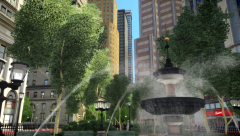
From the album: Screenshots
-
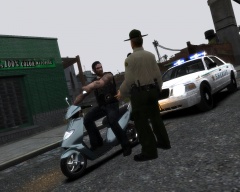 Love the uniform, car, and lights! Classic sheriff!! (:
 -
 STOP FUCKING TEASING ME!
 i'd fuck that in the pussyYou've got the wrong attitude, my friend.7 seconds ^
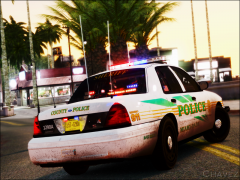 Which palm trees are thoseThat is a negative ghostrider.

![[WIP] 2008 Ford Explorer](http://s3-gallery.int-cdn.lcpdfrusercontent.com/gallery/album_2619/sml_gallery_928_2619_92966.png)

