





.png.e279b5f27eff5f4988995985409d4121.png)
.png.48d8f519112b31d4610c08c35db63acf.png)
.png.9635c944b4f9648090e6a3627c3e853b.png)
.png.1567018858d197c8e47dfae32965c3f6.png)
.png.7c6425dad70db94cd350209caa7102f6.png)
.png.d8a26acca9415aebc4b6479fe8dac032.png)
.png.1ac9de774ea0454ef9e78fafa0b36083.png)
.png.ada4b9c3ef07759e875d6056264cf99a.png)
Welcome to Texas!
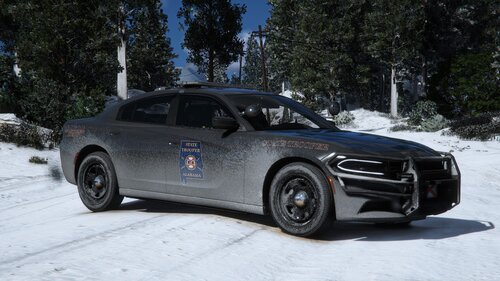
The Texas State Trooper MiniPack contains 3 vehicle textures and are almost carbon copies of the real versions. Both ‘SHERIFF’ and ‘SHERIFF2’ are used for this pack and I added a fiction texture for the ‘FBI’ slot as well.
Now the whole of Blaine County and Los Santos County are filled with Texas State Troopers. Hope you enjoy.
Ford Crown Victoria Police Interceptor
- Includes four textures (one for each slot).
- A different license plate for each slot.
- Carbon copy of the real thing.
- LINK: http://www.lcpdfr.com/files/file/8926-ford-cvpi-sheriff/
Chevrolet Tahoe
- Includes one texture (only one slot).
- Carbon Copy of the real thing.
- LINK: http://www.lcpdfr.com/files/file/8890-2008-tahoe-ppv-14/
Chevrolet Impala
- Includes one texture (four slots but the game only uses one)
- This is a FICTION texture (not used in the real world)
- A slick texture for the Impala.
- LINK: http://www.lcpdfr.com/files/file/8764-2014-chevrolet-impala-ppv-umuc/
Bravado Rumpo
- Includes one texture (three slots but only one is needed, just replace all with the one texture)
- This is a FICTION texture (not used in the real world)
- A new type of vehicle added to GTA V, a public order vehicle didn't exist till now.
- LINK: http://www.lcpdfr.com/files/file/8855-rumpo-police-transport-ambulance/
Know bugs
- The CVPI seems to be really glossy, that is the vehicle which hopefully is going to be fixed.
Installation
- First of all install all of the vehicles.
- Then navigate to the ‘YTD’ files in OpenIV and enable editing.
- Replace the texture slots given with the TST textures (make sure not to use the CVPI more than once)
- Load up your game and show whose boss.
Proudly brought to you by Call Of Reality.
The Texas State Trooper MiniPack.
What's New in Version 1.2
Released
Fixed some faults in the Rumpo texture.
Vehicles - F5544, Callabo Productions and BxBugs123



![[DLS/Add-on] New York Police Pack](http://s3-screenshots.int-cdn.lcpdfrusercontent.com/resize/500/-/monthly_2026_04/preview.thumb.png.18b807af87cc2bc0f01f1e6156a9ad39.png)
![台灣警車 Taiwan Police Car(2016 Ford Mondeo)[ADD-ON|ELS]](http://s3-screenshots.int-cdn.lcpdfrusercontent.com/resize/500/-/monthly_2026_04/271590_20260403180956_1.thumb.png.553e9d7daaf5ab08616b5417d74f863c.png)



Recommended Comments
Create an account or sign in to comment