


(Reuploaded into the right place)
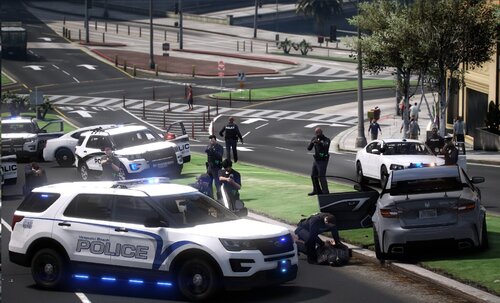
Hello! After much work, I have finally released Version 1.0 of the Toronto Mod!
This includes:
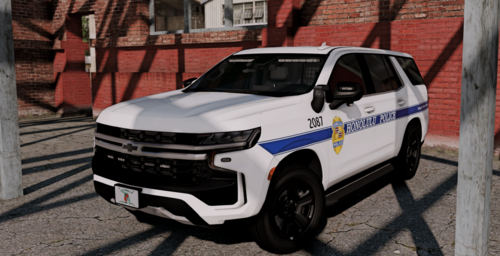
Police and EMS
and Civilians like Bus, Taxi etc.
I hope you enjoy and makesure to read the Readme!
Please note, I do not ask for Donations, but they are kindly appreciated as I would like to buy programs to help me create more cars and peds :)
Bxbugs123 /JM Designs
lonestranger
Lt. Caine,
Schaefft,
Chasez,
KevinDV,
F5544
lonestranger
Lt. Caine,
Schaefft,
Chasez,
KevinDV,
F5544

![UrbanPlus: World Reimagined [SP/FiveM]](http://s3-screenshots.int-cdn.lcpdfrusercontent.com/resize/500/-/monthly_2026_02/UrbanPlus.thumb.png.1f880ad3aba8d1ef3de85efd47dfae6f.png)
.thumb.png.afea87ee51864d1828b2faee0c0ac7d6.png)
![BMW M5! [NON-ELS]-[ELS] [Add-on / Replace | FiveM-Ready]](http://s3-screenshots.int-cdn.lcpdfrusercontent.com/resize/500/-/monthly_2026_06/image.thumb.png.8ef63d49ac864a5728a748bec8591a65.png)
![臺灣救護車 Taiwan Ambulance(Volkswagen T6.1 Kombi LWB)[ADD-ON|ELS|Reflect]](http://s3-screenshots.int-cdn.lcpdfrusercontent.com/resize/500/-/monthly_2026_06/271590_20260616210557_1.thumb.png.c5000f88ce86ccb3bec37b87dae3bfa0.png)

![[台灣 911標誌] Taiwan 911 Icon](http://s3-screenshots.int-cdn.lcpdfrusercontent.com/resize/500/-/monthly_2025_12/TW911.thumb.png.3243a6e4352bd90c688194cb5b6e8060.png)

Recommended Comments
Create an account or sign in to comment