


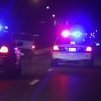


Baltimore City police Pack 2.0
By:Element
Bringing the 410 to the 310.
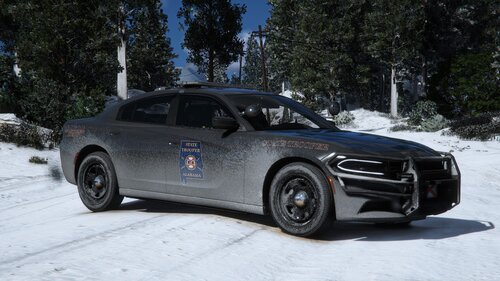
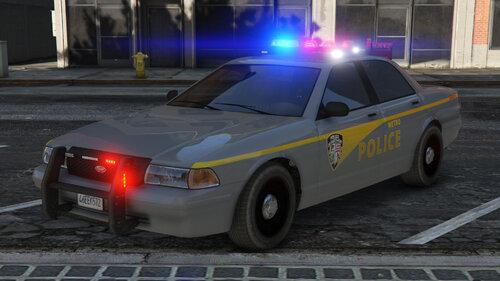
This is a simple Baltimore City and County police texture pack. Some of the vehicles in this pack are fictional concepts and have never been used by Baltimore County or City jurisdictions. Always nice to have options though right? This pack comes with 13 different County and City textures.
Unit textures can be found here:
http://www.lcpdfr.com/profile/1459-element/?do=content&type=downloads_file&change_section=1
INSTALL:
--To install first import these models and insert the new livery's as you install them using OpenIV.
-- LINKS TO ALL MODELS CAN BE FOUND IN THE ReamMe. --
Enjoy and rate please.
What's New in Version 2.0
Released
V2.0
-All textures in this pack have been revised.
-2012 BCPD Ford Tourus
-GMC BPD Transport Van
-2009 BCPD Dodge Charger
- Base GTAV vehicle model made by Rockstar Games and modified by Lt.Caine.
- Vehicle body remapped by Lt.Caine.
By: Kirigaya Jackal
credits: -jackal and police equipment by rockstargames
-templated by MattJeter
-skin by purplepotatoes14
By : PimDSLR
F5544 for Whelen lightbar,CVPI and Partition.
(Ford CVPI from Driver San Francisco
Ported to GTA IV by F5544.
Edited to police version by Cj24 and KevinDV.)
YCA-RE for Mirrors, spotlight, Radar Gauge, Antenna and Console w/ printer-
By: BxBugz123 2014 Impala
- Model is original 2010 Chevrolet Impala LS From Driver SF.
- Modified and Converted in to 2014 PPV Impala by Bxbugs123, later Converted to GTA V by Bxbugs123
- Seats By Bxbugs123, Antennas by Bxbugs123.
- Wheels Modeled, Textured & Converted for GTA IV by Bxbugs123.
- All Police Equipment Modeled, Textured & Converted for GTA V by Bxbugs123 (see model overview for full list of equipment.)
- All Police Lighting Equipment Modeled, Textured & Converted for GTA V by Bxbugs123 (see model overview for full list of Lighting.)
- Go-Rhino Pushbar Modeled, Textured & Converted for GTA V by Bxbugs123.
- Setina Partition Modeled, Textured & Converted for GTA V by Bxbugs123.
- M780 Shotgun by GRIM, AR by Rockstar Games, Pro-Gard Gun Rack by Bxbugs123.
- LS/SA & SASP SKINS by Bxbugs123 "DO NOT EDIT THEM WITH OUT PERMISSION"
By: AlexTolle 2008 Tahoe
NickieB - Setina Pushbar
Dbock1989 and SgtManley - Model Conversion, Enhancements, and Editing into PPV
GTA V - Lights
Stiopa & Bxbugs123 - Original Model
Textures By Element






Recommended Comments
Create an account or sign in to comment