


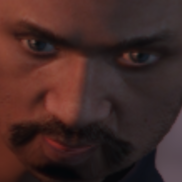


Brute AMR Ambulance
this model was requested by GeorgeJetSam
credits:ambulance:Model is composed of original Speedo and original Ambulance by Rockstar Games, each fused and modified by
Lt.Caine.
Wheels made by Lt.Caine.
Main textures made by Lt.Caine.
EMT lights:Model made by Toothpick22
Textures Made By Toothpick22
leds side: scratch modeled and converted to gta iv by jasonct203
textured by jasonct203
leds front: Whelen TIR 6 Super LED created and ELS mapped by tomcat8492
skins: all skins made by GeorgeJetSam
ambulance:Model is composed of original Speedo and original Ambulance by Rockstar Games, each fused and modified by
Lt.Caine.
Wheels made by Lt.Caine.
Main textures made by Lt.Caine.
EMT lights:Model made by Toothpick22
Textures Made By Toothpick22
leds side: scratch modeled and converted to gta iv by jasonct203
textured by jasonct203
leds front: Whelen TIR 6 Super LED created and ELS mapped by tomcat8492
skins: all skins made by GeorgeJetSam
Lt.Caine.
Wheels made by Lt.Caine.
Main textures made by Lt.Caine.
EMT lights:Model made by Toothpick22
Textures Made By Toothpick22
leds side: scratch modeled and converted to gta iv by jasonct203
textured by jasonct203
leds front: Whelen TIR 6 Super LED created and ELS mapped by tomcat8492
skins: all skins made by GeorgeJetSam
![台灣緊急車輛包 Taiwan Emergency Car Pack(2021 Toyota RAV4 LE)[ADD-ON|ELS]](http://s3-screenshots.int-cdn.lcpdfrusercontent.com/resize/500/-/monthly_2026_10/271590_20261008013919_1.thumb.png.594c5371dcab45b4bbf45e739c879d87.png)
![City of Live Oak Sheriff Minipack | Addon | FiveM/SP | [ELS-Hybrid]](http://s3-screenshots.int-cdn.lcpdfrusercontent.com/monthly_2026_10/prev.thumb.jpg.2282bb6922886d97821978d0417a3b22.jpg)



![[DLS][DLC] Kansas City Kansas Police Pack](http://s3-screenshots.int-cdn.lcpdfrusercontent.com/monthly_2026_10/6.thumb.png.4b6bca3b611d526404c81398ea854adf.png)


.thumb.png.8037129bc2526a9a9c435f4295948c9e.png)
Recommended Comments