Skip to content
View in the app

A better way to browse. Learn more.

LCPDFR.com

A full-screen app on your home screen with push notifications, badges and more.

To install this app on iOS and iPadOS
  1. Tap the Share icon in Safari
  2. Scroll the menu and tap Add to Home Screen.
  3. Tap Add in the top-right corner.
To install this app on Android
  1. Tap the 3-dot menu (⋮) in the top-right corner of the browser.
  2. Tap Add to Home screen or Install app.
  3. Confirm by tapping Install.
Due to overzealous filtering on Microsoft’s side, some emails to Outlook and Hotmail addresses may not be delivered. If you’re affected, please use a different email address or try again later.

AxonSolutions UI 1.0.0

(1 review)

3 Screenshots

AxonSolutions UI - v1.0 release

AxonSolutions UI adds an interactive Axon Body 3 UI to your game. Power the camera on, start and stop recordings, move or resize the interface, and customize controls and settings through an in-game menu.

quality better in-game

gif (2).gif

Features
  • Axon Body 3 UI showing a realistic status display

  • Chest tap animations when recording starts or stops

  • Bodycam sounds and button feedback

  • Movable and resizable interface

  • Saved controls, position, size, serial number, and preferences

  • In game configuration menu

  • Options to disable the interface, overlay, sounds, or animations
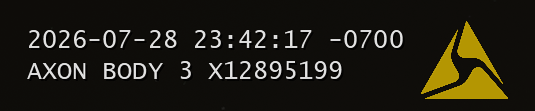
image.png

Default Controls
  • Hold ] to power on or off

  • Double-tap [ to start recording

  • Hold [ to stop and save

  • Press = to show or hide the interface

  • Press Left Shift + - to edit its position

  • Press F12 to open the configuration menu

All controls can be changed in the configuration menu in-game. Read the instructions.txt!!

Installation

Copy the included plugins folder into your main Grand Theft Auto V directory and merge the folders.

Grand Theft Auto V\Plugins\LSPDFR\AxonSolutions.dll

Requirements
  • RagePluginHook

  • LSPDFR

  • RAGENativeUI

The Body 3 UI can also optionally be used with other bodycam plugins, such as Axon Signal, by matching the keybinds and disabling the built-in audio and overlay in the configuration menu. (I wont add step by step instructions for this because it's self explanatory).

This plugin works great alongside ApxRadio UI :), and to just to make this clear, this was NOT ripped from FiveM and the original design came from Axon's social media page.

YouTube Demos

Edited by OwenAb
added more youtube videos


Short Description

A functional Axon Body 3 UI with interactive recording controls, a realistic status display, a screen overlay, and more.

User Feedback

Recommended Comments

NeonBlue536

Members

This is really good, compared to how it also looks on fivem LA servers. Are you one day gonna make a Axon Body 4 ui one day?

Ickthy

Members

This is actually such an innovative idea. Currently trying to record a showcase for someone else's callout pack so unfortunately I've gotta keep everything simple for that. Once I'm done with that however, I'm definitely gonna have to pick this plugin up to try out for myself. Thanks for making this!

OwenAb

Members Author

2 hours ago, NeonBlue536 said:

This is really good, compared to how it also looks on fivem LA servers. Are you one day gonna make a Axon Body 4 ui one day?

Yes, I’ll definitely look into making that. I just need to do some research and find some good photos of it online, then I'll see what I can cook up.

ThatGuySens

Members

Can we get a animation for turning it on?

ghghghfhhgf

Members

what graphics pack are you using?

ThatGuySens

Members

When hitting the button to turn on body camera my animation for my radio is shows

RiccRacc

Members

9 hours ago, ThatGuySens said:

When hitting the button to turn on body camera my animation for my radio is shows

same here

xDuvii

Members

(edited)

great script, sadly we're not able to move the bodycam recording overlay freely. I tried using AxonSignal because I have the overlay already set up there but the plugin overlaps between each other once you're going to turn off the camera, which is not a big deal but it's weird because you hear two beepoff sounds playing back and forward. I would recommend to add a compatibility into it or just make a edit mode for the overlay would be perfect.

Edit: I just read that we can turn off the audio but the problem still stays by adding a delay between the axonsignal and the plugin.


Edit again: NEVERMIND AWESOME PLUGIN!!!. (silly me by not checking the plugin properly)
Still will be nice to add a edit mode for the overlay.

Edited by xDuvii

OwenAb

Members Author

On 7/30/2026 at 8:46 PM, ThatGuySens said:

When hitting the button to turn on body camera my animation for my radio is shows

I'll look into a better alternative, I am unfortunately just limited to base game animations so I'll see what I can find.

2 hours ago, xDuvii said:

great script, sadly we're not able to move the bodycam recording overlay freely. I tried using AxonSignal because I have the overlay already set up there but the plugin overlaps between each other once you're going to turn off the camera, which is not a big deal but it's weird because you hear two beepoff sounds playing back and forward. I would recommend to add a compatibility into it or just make a edit mode for the overlay would be perfect.

Edit: I just read that we can turn off the audio but the problem still stays by adding a delay between the axonsignal and the plugin.


Edit again: NEVERMIND AWESOME PLUGIN!!!. (silly me by not checking the plugin properly)
Still will be nice to add a edit mode for the overlay.

I will implement this in the next update, glad you could get it to work.

On 7/30/2026 at 6:58 AM, ghghghfhhgf said:

what graphics pack are you using?

It's Nvidia's game filters, I don't have an actual graphics pack installed.

Create an account or sign in to comment

Account

Navigation

Search

Search

Configure browser push notifications

Chrome (Android)
  1. Tap the lock icon next to the address bar.
  2. Tap Permissions → Notifications.
  3. Adjust your preference.
Chrome (Desktop)
  1. Click the padlock icon in the address bar.
  2. Select Site settings.
  3. Find Notifications and adjust your preference.