





Guardian Angel Pack
by Ouxlaw and Yasd
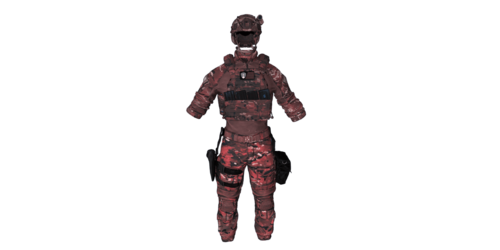
This mod adds high-quality "Guardian Angel" shoulder lights for both male
and female characters. Use the optional plugin to easily toggle between
different lighting modes on the fly.
The models can be found under the Beard/ Mask category.
Installation
1. The Model (Core)
• Download: Get the mod files from lcpdfr.com.
• OpenIV: 1. Navigate to mods/update/x64/dlcpacks.
2. Drag and drop the GApack folder there.
• Enable DLC: 1. Go to mods/update/update.rpf/common/data.
2. Edit dlclist.xml and add the following line at the bottom:
<Item>dlcpacks:/GApack/</Item>
2. GAControl Plugin (Optional)
• This is a RagePluginHook (RPH) plugin.
• Drag the plugins folder into your main GTA V directory.
• To Load: Either set it to "Load on startup" in the RPH settings or type
LoadPlugin GAControl.dll in the F4 console ingame.
More info is included in the Readme in the download.
Video Tutorial by ArmouredDivision
https://www.youtube.com/watch?v=etr8szmhSfM
Edited by Yasd
Short Description
Plugin made by Yasd


![[ELS-Hybrid | Addon] Sandy Shores 2011 CVPI Pack](http://s3-screenshots.int-cdn.lcpdfrusercontent.com/resize/500/-/monthly_2026_06/1.thumb.png.0352936a973262bab2cefb608858e393.png)


![[DLS] Unmarked 25 Silverado](http://s3-screenshots.int-cdn.lcpdfrusercontent.com/monthly_2026_06/GrandTheftAutoVScreenshot2026_06.14-00_18_37_46.thumb.jpg.984d7ac60fd55917b5c1da380b021eb7.jpg)


![[NON-ELS/DLS] CSP Slicktop and Unmarked 2018 Charger](http://s3-screenshots.int-cdn.lcpdfrusercontent.com/monthly_2026_06/GrandTheftAutoVScreenshot2026_06.14-21_39_00.41-Copy.thumb.jpg.e397ac53a76dabafb9bf9a4874df434a.jpg)
Recommended Comments
Create an account or sign in to comment