


*THIS IS ONLY THE TEXTURE! DOWNLOAD THE MODEL FROM LINK BELOW!*
You are in no way shape or form allowed to reupload or distribute these files edited or unedited anywhere nor claim them as your own.
If you want to share the texture, share the link to the lcpdfr page or to Drivezz discord server.
Installation:
1. Rename all the .yft and .ytd files to "burrito5" instead of "t61" including the one from this ZIP-file
2. Put all the files wherever you install cars in OpenIV (most commonly in the latest patchday)
3. Done!
(Optional) Follow these steps below to have the coroner service use the vehicle with Stop The Ped:
4. (Optional) Go to the following path in File Explorer and open up StopThePed.ini: Grand Theft Auto V\plugins\LSPDFR
5. (Optional) Hit Ctrl + F and search for "Coroner"
6. (Optional) Change CoronerVehicleModel=SPEEDO to CoronerVehicleModel=BURRITO5
7. (Optional) Done!
This file includes:
*Swedish Coroner "Politivagn" Texture
*Swedish License Plates
*Accurate Coloring and Logos
Textures that has been edited:
HD_Scheiben
plates
t61_template
Discord Server: https://discord.gg/sNMAmrjFhP
Join my Discord for support and to see upcoming projects and sneak peeks on stuff in the works!
Contact Me On Discord: drivezz
Edited by Drivezz
Short Description
Skin by 1002.nilus
Swedish Textures: Drivezz
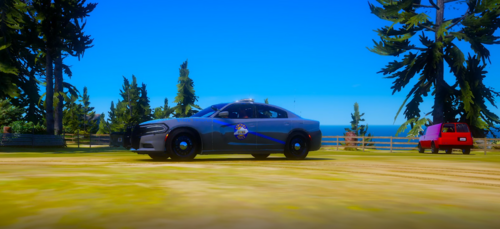
.thumb.png.afea87ee51864d1828b2faee0c0ac7d6.png)
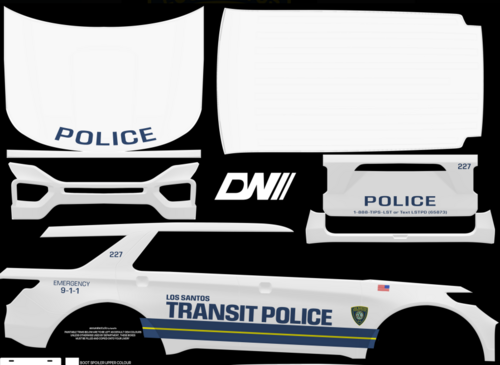
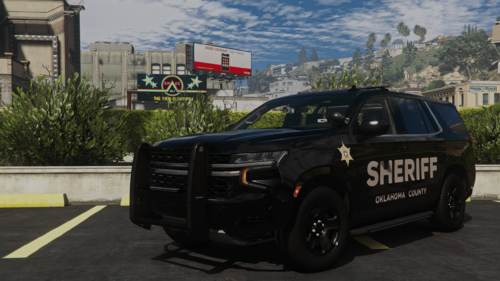
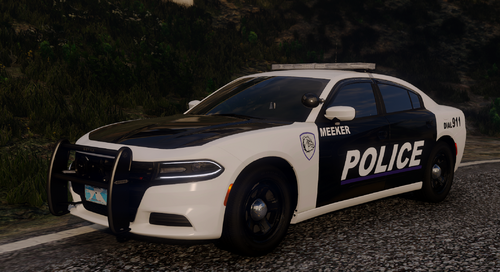





Recommended Comments
Create an account or sign in to comment