




Read the description for this mega pack's lore on each pack released!
Algonquin Police Department + Metro-Transit Police (APD + MTP):
The Algonquin Police Department (APD) is the largest agency in the state, neck-and-neck with the Alderney County Sheriff's Office.
The APD is the very first police department formed in the state. The APD uses their own central dispatch located in the same building as the state police's dispatch center. Their callsigns consist of 2 digits or 3 followed by a phonetic, signifying division.
The APD also houses the Metro-Transit Police which is a cross between an APD division and an independent department. The leading board of the department consists of the Chief of Police, Chief of Staff, Metro-Transit Police Chief, and the Training Commander.
The Metro-Transit Police (MTP) covers train stations, bus stations, transit hubs, subway stations, bridges, and star junction. The MTP has more jurisdiction than normal APD since they are deputized to cover all metro-transit issues outside of the city of Algonquin.
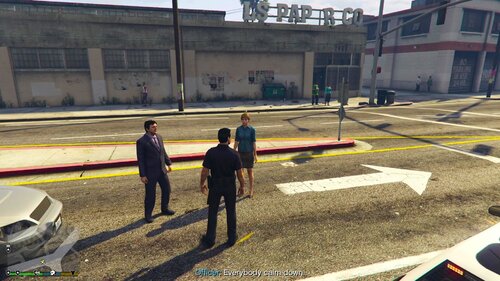
![[ELS] TOS Friendly Gravel Scouting Pannenhilfsfahrzeug](http://s3-screenshots.int-cdn.lcpdfrusercontent.com/resize/500/-/monthly_2026_05/image(1).thumb.png.11b6d1dd804231463c410697238c6672.png)

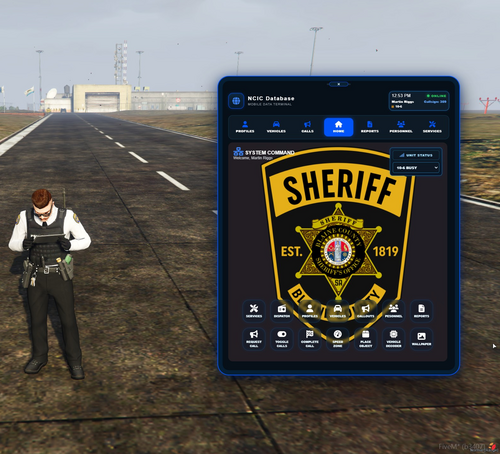
![[ELS] TOS Friendly Gravel Scouting HVO](http://s3-screenshots.int-cdn.lcpdfrusercontent.com/resize/500/-/monthly_2026_05/01.thumb.png.29cd5d50d6b87d8d94e1a371570d583b.png)




Recommended Comments
Create an account or sign in to comment