


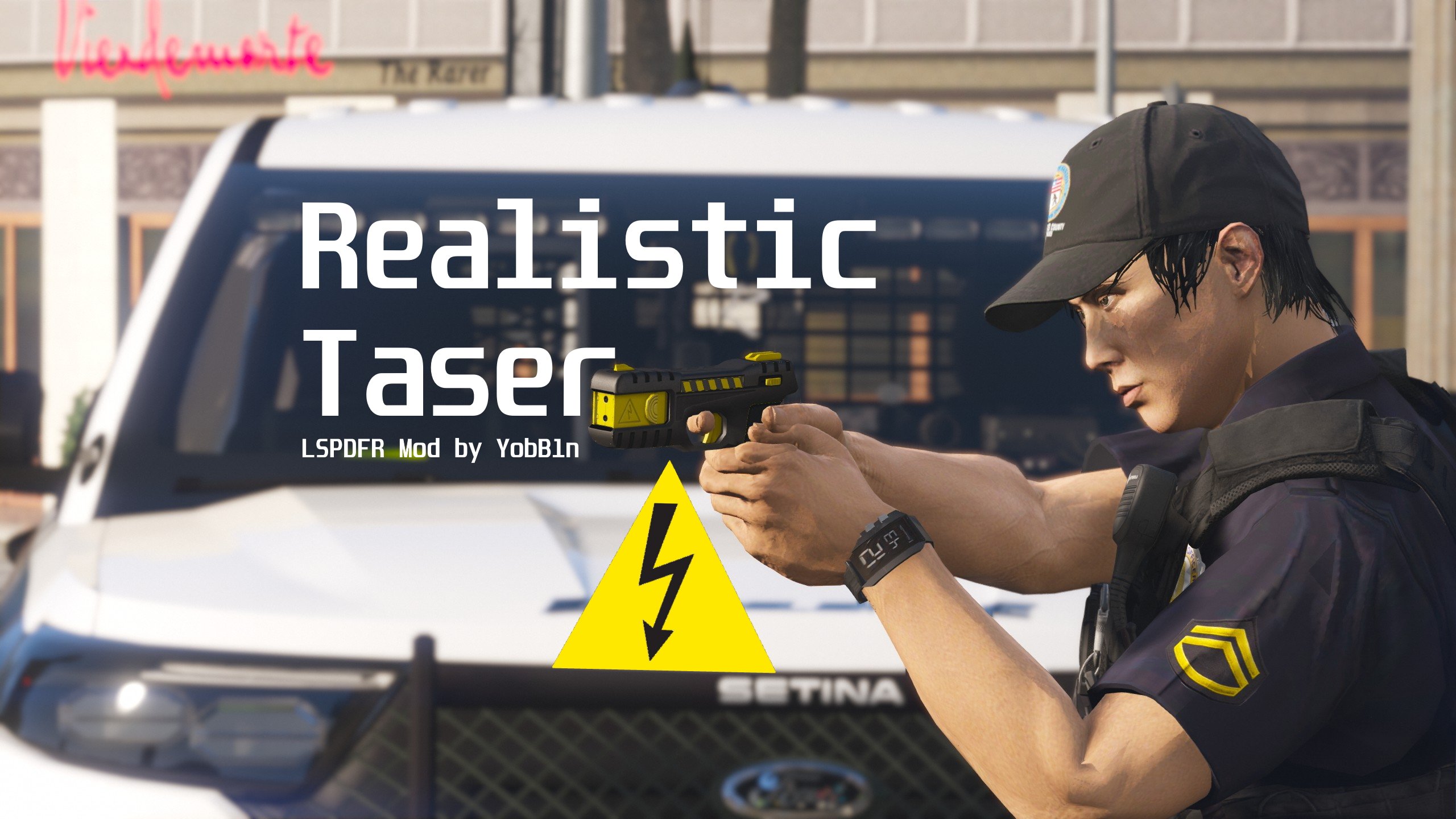

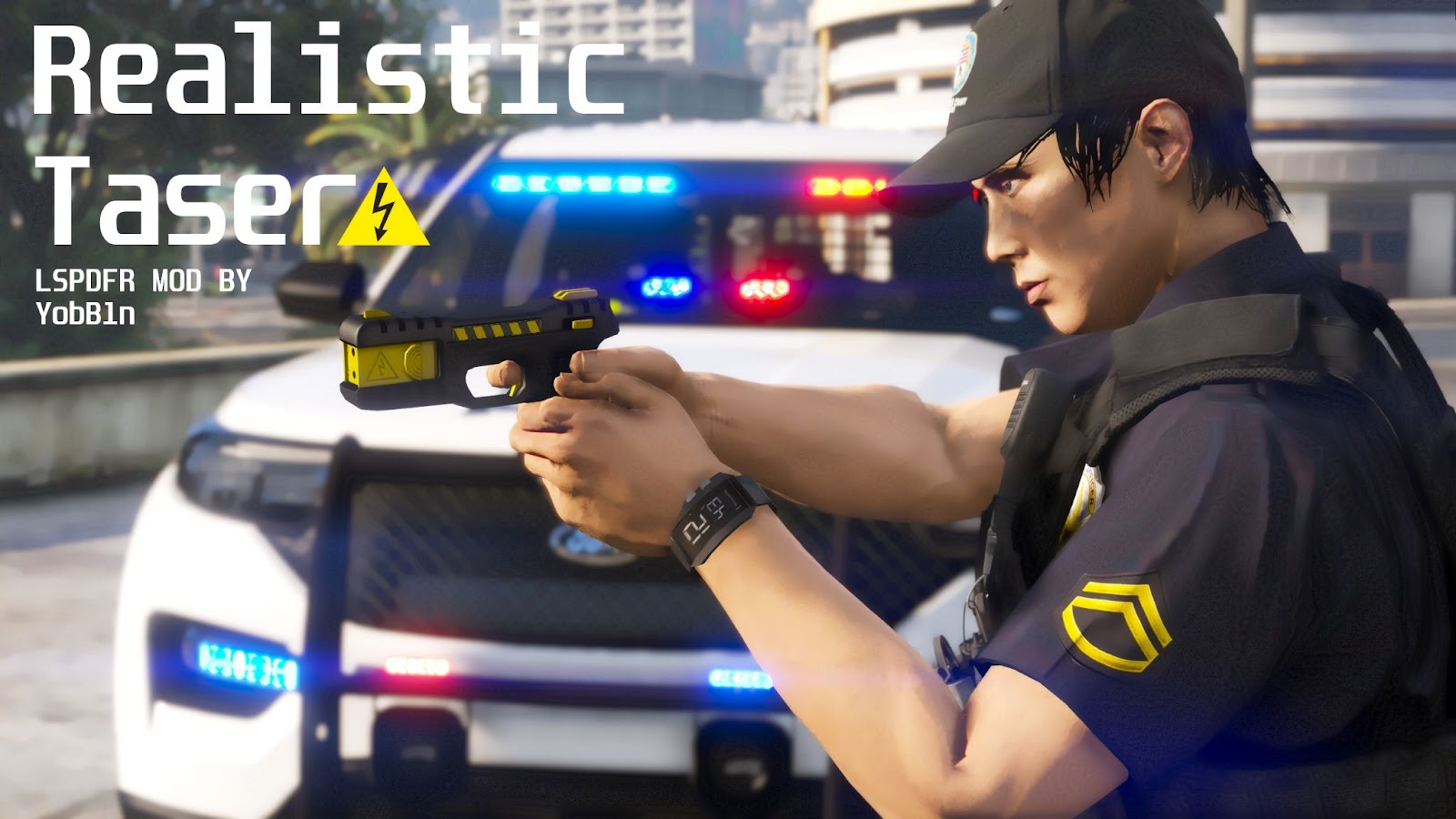
Realistic Taser
By YobB1n | Version 1.1.3 | Released August 19, 2022
Join My Discord Server for Updates and Early Releases,
and find more of my Mods at my Website.
Introduction
This plugin aims to change one of the most unrealistic parts about LSPDFR - the taser. As it currently stands now, the taser will always successfully stun the suspect up until a certain threshold, where the taser is then out of range and ineffective. This plugin has two options - either a user-defined probability of the taser being effective regardless of the range, or a probability depending on how far away the taser is from the suspect.
Requirements
-
LSPDFR 0.4.9 (Or Newer, if applicable)
-
Most Recent Version of RagePluginHook
-
Most Recent, Legal Copy of GTAV (Steam, Epic, or Retail All Work)
Installation Instructions
Unzip the file. Copy ALL of the Contents of the “Grand Theft Auto V” folder into your MAIN “Grand Theft Auto V” or “GTAV” Directory, which contains “GTAV.exe” in it.
Features
All these features can be customized and enabled/disabled in the RealisticTaser.ini Config File.
-
Taser Success Probability - Specify the probability of the taser being successful, regardless of how far away the player is from the Suspect
-
Taser Success Based on Range - The probability of the taser being successful depends on how far the player is from the Suspect. A detailed description is below.
-
Scale Factor - Change how the Taser behaves based on your “feel” for the game.
-
-
Limit Reloads - Limit the taser to a certain amount of shots (default is 2) as in real life. Reload Animations can be enabled/disabled.
-
Replenish Taser in Vehicle - The Taser will replenish to the specified amount of shots every time the player enters a Police Vehicle
-
-
UI - A basic UI indicating how many shots are left in the Taser, similar to the Ammo Counter for other weapons. Can be adjusted or disabled entirely.
-
Dry Fire - The Taser will produce a Dry Fire (click) sound if fired when not reloaded.
How the Plugin Works
As mentioned, there are two main options with this plugin. A detailed description of how each option works is below:
User-defined Taser Success Probability
Using the “Taser Success Probability” option in the Config file, you can specify the probability that the taser will be effective, regardless of how far the player is from the suspect, provided the suspect is within the default taser range. Setting this to 0 means the taser will never work, and 100 will always work (provided the suspect is in range).
By default, this is set to 69% (nice), the average taser effectiveness reported by Police Departments in 12 major U.S. cities in 2015, according to a 2019 NPR article titled “Despite Widespread Use, Police Rate Tasers As Less Effective Than Believed”.

Range-defined Taser Success Probability
This is, in my opinion, the better option. When “Taser Success Based on Range” is set to true in the Config file, the chance of an effective taser deployment will depend on how far away the player is from the suspect. This is the default setting.

Using the above data from the same article from both New York and Fort Worth, it is clear that taser effectiveness is far higher when the suspect is between 3 feet (1 meters) and 10 feet (3 meters) away. Effectiveness drops significantly after this threshold. Extrapolating this data results in the following graph (note the probability of success (%) is the y-axis, and the range (in meters) is the x-axis.

If you are curious, this results in the function
y = 60.7539 / x^0.824732 - 12.821
where x is the range between the Suspect and Officer in meters. Of course, this is only an approximation based on yearly data from just two Police Departments, but it’s what I went with. This means that you will have to be quite close to the suspect in order for the taser to be reliable, which is true to life. The taser may still work at farther distances, but its reliability will drop off considerably quickly as demonstrated in the above graph.
GTAV Distance Scaling - Important!
An important note, GTAV does not have the same distance scale as real life (distances in GTAV are much larger than they would feel in real life). Think about how you can easily drive over 150 km/h on a city street in GTAV, but it seems far slower than 150 km/h would actually be. The setting “Scale Factor” will multiply the distance between the player shooting the taser and the suspect to compensate for this. The default is 3, higher values will increase the taser’s effective range, lower values will decrease it. You can adjust this to what feels realistic and natural for you.
How to Use
This is an LSPDFR plugin. It is placed in the Plugins/LSPDFR folder. It will be available once you load LSPDFR and go on duty. This plugin originally was intended as an RPH standalone plugin, however there was a bug that seemed to occur whenever LSPDFR was loaded. I may release the standalone version of this plugin in the future if people request it.
Bug Reporting and Requests
Please report all bugs or issues so that I can work on them. Please Do NOT report bugs in the review of the plugin. Instead, please leave a message on my discord server in the bug reports channel, or a comment on the plugin page of LSPDFR with a concise description of the problem and a solution if you have one. If you have any improvements for the plugin, or suggestions for future plugins/callouts, please also leave a message in my discord.
Support
For the best support, please either use the support channel on my server, or the official RagePluginHook Discord Server.
Support the Effort 🙂
If you enjoy these plugins please share them with your friends and leave a positive review, and report bugs so the experience can be better for everyone. Also, it would mean a lot if you consider supporting me on PayPal, https://bit.ly/3iBmnsn.
Check out my Other LSPDFR Mods:
-
Yobbin Callouts - Unique and detailed callout pack all around San Andreas!
-
Fort Zancudo Callouts - Immersive Military Police Mod for Fort Zancudo
-
Door Control - Police Vehicle Options Menu
Credits
-
I’ve had this idea for a while, but I was finally spurred on by this Forum post.
-
Big Thanks to NPR for doing all the research for me lol.
-
Thanks to all who reported issues or contributed feedback/ideas to this Plugin!
Once again, thank you for downloading and have fun! Take care 🙂
Please do not redistribute or reupload any of my plugins to other sites. Thank You!
Edited by YobB1n
What's New in Version 1.1.3
Released
Release 1.1.3 Changelog
- Fixed a bug that would spam the log with debug messages when the player is in a vehicle.
This is a very minor release and you do not have to update to recieve the same functionality.


![台灣緊急車輛包 Taiwan Emergency Car Pack(2021 Toyota RAV4 LE)[ADD-ON|ELS]](http://s3-screenshots.int-cdn.lcpdfrusercontent.com/resize/500/-/monthly_2026_10/271590_20261008013919_1.thumb.png.594c5371dcab45b4bbf45e739c879d87.png)
![City of Live Oak Sheriff Minipack | Addon | FiveM/SP | [ELS-Hybrid]](http://s3-screenshots.int-cdn.lcpdfrusercontent.com/resize/500/-/monthly_2026_10/prev.thumb.jpg.2282bb6922886d97821978d0417a3b22.jpg)



![[DLS][DLC] Kansas City Kansas Police Pack](http://s3-screenshots.int-cdn.lcpdfrusercontent.com/resize/500/-/monthly_2026_10/6.thumb.png.4b6bca3b611d526404c81398ea854adf.png)


.thumb.png.8037129bc2526a9a9c435f4295948c9e.png)
Recommended Comments
Create an account or sign in to comment