


.png.f9e8650358516c2555925c663f5fe3a4.png)
.png.318141a3908d1df967d2e27b952596ba.png)
.png.b7c204deaa3a5f221deb708e41b23717.png)
.png.f5b640a5630dacb8c2097f1aacd40ff6.png)
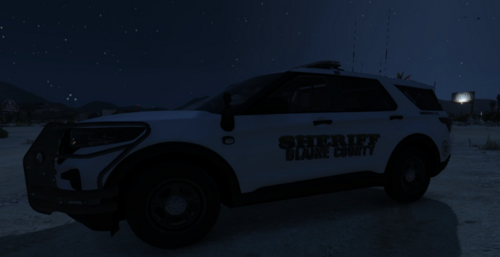
hi there everyone I present to you the more realistic color red white and blue lights for your caprice... well for this one atleast. that every man dreams of having and the best is? its free 😄
Time of day rating:
Daytime:
Code 3 lights:
Front and Back 7/10
Ram Bar, sidelights, bumper lights and dash lights: 9/10 <---- decent results
Afternoon:
Code 3 Lights:
Front and back 9/10
Ram Bar, Sidelights, Bumper Lights and dashlights: 10/10 <------ Great Results
Night:
Code 3 Lights:
Front and back 10/10
Ram Bar, Sidelights, Bumper Lights and dash lights 10/10 <------Best Results
Installation directions:
step 1: open.... OpenIV and go to where your caprice is installed (usually its in x64.e or your latest patch update)
step 2: open up in OpenIV police.ytd and scroll until you find the vehicle texture (match up the texture files in the .ytd) and click on it once, than click replace
step 3: find the Lights folder you want to put on it….in this instance 2013 Caprice realistic lights…. and double click on that picture
Step 4: click save and BAM that more realistic looking lights is now on your car 😄
Super simple instructions as long as the texture is for vehicle you wanna put it on. but enjoy and happy code 3 😄
Credit goes to the author of the vehicle file right here:
.thumb.png.9c3d34bc504beaee2568da87c69437aa.png)
![Patrol Belt [FiveM & LSPDFR]](http://s3-screenshots.int-cdn.lcpdfrusercontent.com/resize/500/-/monthly_2026_06/ProductRender2.thumb.png.a38110d695922d6aadb8e856a98322b6.png)
![Politia Romana - BMW M5 [NON-ELS]-[ELS] [Add-on / Replace | FiveM-Ready]](http://s3-screenshots.int-cdn.lcpdfrusercontent.com/resize/500/-/monthly_2026_06/1.thumb.PNG.597da8bad8a1476bb85f5239259826ae.PNG)
Recommended Comments
Create an account or sign in to comment