




PT-BR
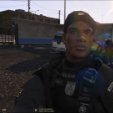
PELE RECOM PMERJ GTA V, (RONDAS ESPECIAIS CONTROLE DE MULTIDÕES) ESSE
É O SIGNIFICADO DA RECOM PMERJ.
CRÉDITOS DA PELE:
DIGATO F.GABRIEL
TEXTURA RECOM PMERJ:
GTAIV SOUZA
INSTALAÇÃO DO MOD:
PELE INSTALE AQUI:
😄 \ Arquivos de programas \ Rockstar Games \ Grand Theft Auto V \ mods \ x64e.rpf \ models \ cdimages \ componentpeds_s_m_y.rpf \
BOINA INSTALE AQUI:
😄 \ Arquivos de programas \ Rockstar Games \ Grand Theft Auto V \ mods \ x64e.rpf \ models \ cdimages \ pedprops.rpf \
IMPORTANTE:
CASO PARA UPAR EM ALGUM OUTRO SITE, BLOGGER, FAZER VÍDEOS, POSTAR IMPRIME
POR FAVOR COLOQUE OS CRÉDITOS DOS AUTORES DO MOD.
EN
MOD DESCRIPTION:
RECOM SKIN PMERJ GTA V, (SPECIAL CROWD CONTROL ROUNDS) THAT
IS THE MEANING OF RECOM PMERJ.
SKIN CREDITS:
DIGATO F.GABRIEL
RECOM PMERJ TEXTURE:
GTAIV SOUZA
MOD INSTALLATION:
SKIN INSTALL HERE:
😄 \ Program Files \ Rockstar Games \ Grand Theft Auto V \ mods \ x64e.rpf \ models \ cdimages \ componentpeds_s_m_y.rpf \
BOAT INSTALL HERE:
😄 \ Program Files \ Rockstar Games \ Grand Theft Auto V \ mods \ x64e.rpf \ models \ cdimages \ pedprops.rpf \
IMPORTANT:
CASE TO UPLOAD SOME OTHER SITE, BLOGGER, MAKE VIDEOS, POST PRINT
PLEASE PLACE MOD.
7 Screenshots
GTAIV SOUZA,DIGATO FGABRIEL.







.thumb.png.8cef6bf40847c87cdc7f2b84d14bb45d.png)
![[RELEASE] LASD/LSSD Livery Pack [WIP / Expanding]](http://s3-screenshots.int-cdn.lcpdfrusercontent.com/resize/500/-/monthly_2026_08/11CVPI-LCPDFR.thumb.png.5854e70536a1be65efd81c48874a99d2.png)
![[NON ELS / FiveM Ready] B/B 2021 FPIU Unmarked - ULC Compatible](http://s3-screenshots.int-cdn.lcpdfrusercontent.com/monthly_2026_08/fpiu1(1).thumb.png.6ba7b189c9a83d3aa873f4d24dead596.png)
Recommended Comments
Create an account or sign in to comment