Skip to content
View in the app

A better way to browse. Learn more.

LCPDFR.com

A full-screen app on your home screen with push notifications, badges and more.

To install this app on iOS and iPadOS
  1. Tap the Share icon in Safari
  2. Scroll the menu and tap Add to Home Screen.
  3. Tap Add in the top-right corner.
To install this app on Android
  1. Tap the 3-dot menu (⋮) in the top-right corner of the browser.
  2. Tap Add to Home screen or Install app.
  3. Confirm by tapping Install.

More Realistic LAPD skins for 0sc4r''s LSPD Mega Pack 1.0.2

(1 review)

3 Screenshots

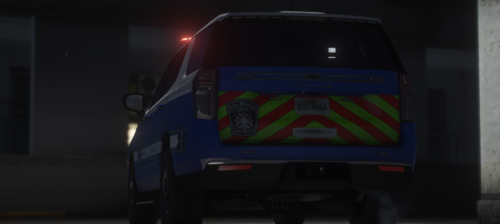
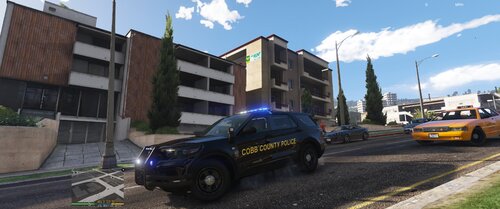
Just a simple re-texture for all the cars in  0sc4r's LSPD Mega Pack for anyone that (like me) wants to turn their gta 5 into a real Los Angeles. I decided to do this as I've seen quite a few people asking for real LAPD skins so here you folks go. I simply changed the seal of the city from LS to LA, changed the plates from SA Exempt to CA Exempt, added white doors and a unit number to the police van and re-worded the Lenco Bear Cat. This will be a WIP and if anyone notices any issues or design flaws please let me know in the comment section and I will take all revamp requests into consideration. NOTE: I take no credit for the car models, all I did was the re-textures. sorry for the lack of screen shots but you guys can pretty much get the idea of what I did.  if you don't know how to install vehicle textures then I'm sure you can find out how with google or YouTube. hope you enjoy.

 0sc4r's LSPD Pack: 


What's New in Version 1.0.2

Released

Updated the seal of the city to be more HD, fixed issues here and there, Added sheriff skins for the explorer, more to come.

User Feedback

Recommended Comments

David Funda

Members

I have a problem with the texture of the bear cat. Even if i replace it with yours, i can actually see both of them (lspd and lapd) on the vehicle... i guess cuz there are also reflective textures. I tried to delete the reflective but now the bearcat is all black with no decals... any idea? 

slinkykilla

Members Author

On 3/9/2019 at 2:45 PM, David Funda said:

I have a problem with the texture of the bear cat. Even if i replace it with yours, i can actually see both of them (lspd and lapd) on the vehicle... i guess cuz there are also reflective textures. I tried to delete the reflective but now the bearcat is all black with no decals... any idea? 

Hello, first off thank you for the download and feedback, that seems odd, I personally didn't have this issue, mine in game looked like it should have. Perhaps try to delete any additional "bearcat_sign_" texture files so that only bearcat_sign_1 remains (if there are any additional sign textures). Or maybe a fresh download of Oscars vehicle pack? Also are you using  the OpenIV method, Replace method or Add On method to Install the vehicles? 

p.s Thank You for bringing my attention to the bearcat as when I was viewing the vehicle in OpenIV I noticed that I forgot to put the correct stamp of the city on the doors so I will fix that when I have the time.

David Funda

Members

Thanks i tried to delete the reflective textures and now it works perfectly 🙂

7 hours ago, slinkykilla said:

Hello, first off thank you for the download and feedback, that seems odd, I personally didn't have this issue, mine in game looked like it should have. Perhaps try to delete any additional "bearcat_sign_" texture files so that only bearcat_sign_1 remains (if there are any additional sign textures). Or maybe a fresh download of Oscars vehicle pack? Also are you using  the OpenIV method, Replace method or Add On method to Install the vehicles? 

p.s Thank You for bringing my attention to the bearcat as when I was viewing the vehicle in OpenIV I noticed that I forgot to put the correct stamp of the city on the doors so I will fix that when I have the time.


Create an account or sign in to comment

Account

Navigation

Search

Search

Configure browser push notifications

Chrome (Android)
  1. Tap the lock icon next to the address bar.
  2. Tap Permissions → Notifications.
  3. Adjust your preference.
Chrome (Desktop)
  1. Click the padlock icon in the address bar.
  2. Select Site settings.
  3. Find Notifications and adjust your preference.