



.jpg.e4971a424f1c382ecd91ada6fbe5b454.jpg)
.jpg.ebdfee7b6c03d92e702eb48bdea9b2ac.jpg)
.jpg.1b4d94752fd9618cbda3e950e223efb4.jpg)
.jpg.e7b2709b8d0d0d0ae18d6a8a6cc24862.jpg)
.jpg.a6da00e081f5cb3dd6bf2b37dc2d37f0.jpg)
.jpg.ba3d10b6b60bc268a60550305628c57f.jpg)
.jpg.65824042288895a7dc32f9ff76e1a522.jpg)
.jpg.29d8f477a5a83a5cd1e7f61825fa9f1a.jpg)
.jpg.be9d3d29e108560fafd141ebe1c7493c.jpg)
.jpg.571c683f72f441232e1391fd6bdd3d9e.jpg)
.jpg.e58438c6a0656faf88792c6d262a03df.jpg)
*******************
CITY CHECKPOINT
*******************
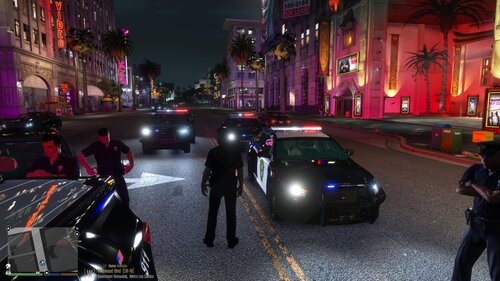
the POLICE forces are making this checkpoint to handle any emergency situation in the city .
they are packed with super speed cars and heavy armed in addition to multiple army units and swat units .
*********************
*** INSTALLATION ***
*********************
1 - extraxt the downloaded file
2 - copy city.xml to the root folder of gta 5
3 - open map editor in game usually by pressing f7
4 - choose to load a map
5 - choose to choose the file location
6 - search for the map and download it
*** Required (to have the full experience) :-
1- Queensland Police Transporter :-
2- Queensland Police Interceptor :-
3- Audi R8 :-
4- RUF RGT8 :-
5- Corvette :-
6- FIB Unmarked Pack :-
7- Command Center :- https://www.gta5-mods.com/vehicles/s-w-a-t-brickade-v1-0b
![Jed's Mega-Garage Sale [ELS]](http://s3-screenshots.int-cdn.lcpdfrusercontent.com/resize/500/-/monthly_2023_03/BCRP15Charger(3).thumb.jpg.335a5c2afffd469b763c8cb47d7219f9.jpg)




Recommended Comments
Create an account or sign in to comment