Skip to content
View in the app

A better way to browse. Learn more.

LCPDFR.com

A full-screen app on your home screen with push notifications, badges and more.

To install this app on iOS and iPadOS
  1. Tap the Share icon in Safari
  2. Scroll the menu and tap Add to Home Screen.
  3. Tap Add in the top-right corner.
To install this app on Android
  1. Tap the 3-dot menu (⋮) in the top-right corner of the browser.
  2. Tap Add to Home screen or Install app.
  3. Confirm by tapping Install.

2017 Tahoe PPV Template 1.0.0

(0 reviews)

3 Screenshots

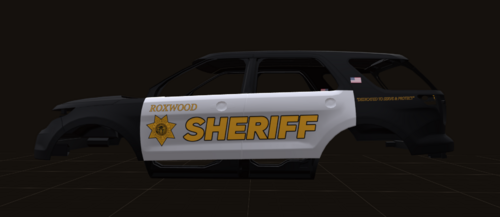
Here is a template for @thegreathah's new 2017 Tahoe PPV model. A key feature that makes this different than the other 2015+ templates from theHurk is that this has the license plate locations included.


tahoe_sign_1 is the higher quality template. Sized 4096 x 4096.


tahoe_sign_2 is the lower quality template of the two. Sized 2048 x 2048.


If you decide to include either of these templates in a vehicle model upload, be sure to include credits for both ME, Shadowdiver710, and theHurk.

Screenshot_2.png

User Feedback

Recommended Comments

Walters

Members

(edited)

No one uses the template in game so why bother making lower and a higher quality template, its only for making skins....

Edited by OfficerWalters

shadowdiver710

Members Author

On 5/28/2017 at 9:46 PM, OfficerWalters said:

No one uses the template in game so why bother making lower and a higher quality template, its only for making skins....

This may just be me but when I am creating textures, if I have a skin from one vehicle I would like to make for another, sometimes I grab various graphics from the other vehicle to see how they are scaled on the one I am currently working on. If one texture is 4096x4096 and the other is 2048x2048, it is a nuisance to have to resize it. That, and if someone else has the same issue and does not know how to resize it, this saves them some time.

Skouski

Members

If you have a higher quality template before you start texturing so when openiv converts it your pixels will be higher quality. I don't know if I explained this very well, its not an easy topic to explain @Walters

Create an account or sign in to comment

Account

Navigation

Search

Search

Configure browser push notifications

Chrome (Android)
  1. Tap the lock icon next to the address bar.
  2. Tap Permissions → Notifications.
  3. Adjust your preference.
Chrome (Desktop)
  1. Click the padlock icon in the address bar.
  2. Select Site settings.
  3. Find Notifications and adjust your preference.