


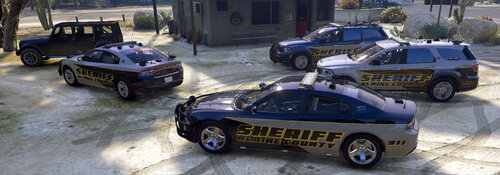
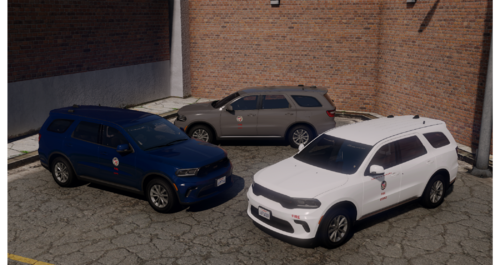
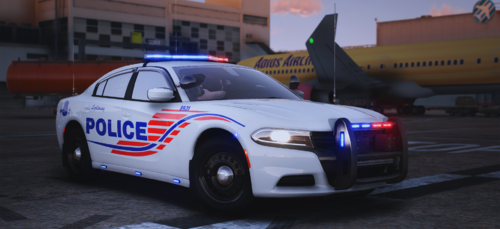
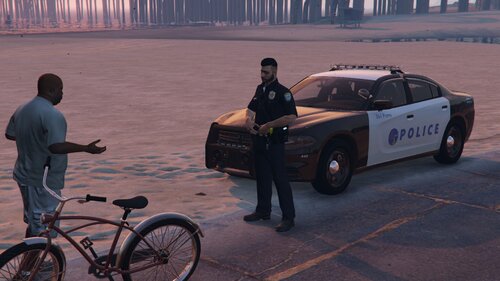
Skins are based off of the city in which I live Pensacola Police Department ..... ( in the background of some screenshots you may see a green and white Tahoe which belongs to the Escambia County Sheriff's Office which patrols my area. Hope you enjoy !!!!! Feedback ( pos & neg both welcomed !!! )


What's New in Version 7.21.16
Released
Skins are based off of the city in which I live Pensacola Police Department ..... ( in the background of some screenshots you may see a green and white Tahoe which belongs to the Escambia County Sheriff's Office which patrols my area. Hope you enjoy !!!!! Feedback ( positive & negative both welcomed !!! )
If you'd like to download my Escambia County Sheriff's Office Pack the link is here:
What's New: Fixed the word " POLICE " on the back of the CVPI to be all white print instead of the white outlined print in the screenshot.

![San Andreas State Trooper Highway Patrol 2016 FPIU [HYBRID]](http://s3-screenshots.int-cdn.lcpdfrusercontent.com/resize/500/-/monthly_2026_05/GrandTheftAutoV-frontview.thumb.png.30642bb14387bcec0717bbf08c4ce746.png)

![[ELS] TOS Friendly Gravel Scouting Pannenhilfsfahrzeug](http://s3-screenshots.int-cdn.lcpdfrusercontent.com/resize/500/-/monthly_2026_05/image(1).thumb.png.11b6d1dd804231463c410697238c6672.png)

![[ELS] TOS Friendly Gravel Scouting HVO](http://s3-screenshots.int-cdn.lcpdfrusercontent.com/resize/500/-/monthly_2026_05/01.thumb.png.29cd5d50d6b87d8d94e1a371570d583b.png)


Recommended Comments
Create an account or sign in to comment