


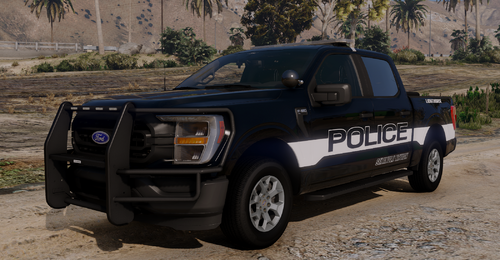
This is a undercover version of the sandking. I have added lights to the interior and front and rear of the body that I used from gta/rockstar vehicles. there is a readme file for installation instructions and a youtube video will be posted shortly showing the vehicle. Youtube https://youtu.be/ikXpgDLDmk8 If you use /change this vehicle give credits. New Video on how to replace vehicle and change the handling https://www.youtube.com/watch?v=rFw-J_ZFEoQ
What's New in Version 2.0.0
Released
!!!!!!! The windows now break !!!!!!!!!!!! In Version 2.
Deputy_P
Rockstar/ GTA V vehicle makers
Rockstar/ GTA V vehicle makers




![Arkansas State Police [4K]](http://s3-screenshots.int-cdn.lcpdfrusercontent.com/resize/500/-/monthly_2026_07/Screenshot_3115.thumb.png.4f63fecf4f5d35f15278a1b28de40525.png)


![[ELS] Thero's State Wide Services Pack (LEO, EMS, Fire, Plus More)](http://s3-screenshots.int-cdn.lcpdfrusercontent.com/resize/500/-/monthly_2026_06/20260627183038_1.thumb.jpg.637012309d27c23370617cdae59974ca.jpg)
.thumb.png.987d590a4b6fb85cfcd7b327be51397d.png)
.thumb.png.185cd3513bd1de8ad9981c46f33d0bc4.png)




Recommended Comments
Create an account or sign in to comment