


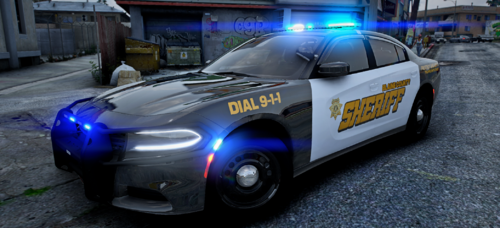
Hello! New Free release. Today I'm bringing to you a new Undercover Vic that is for extreme UC activities. This model comes with top of the line equipment like a drop down visor light. To use this visor light you must hold H for a few seconds! This model also comes with Modkits such as antennas and other forms of equipment like grill lighting and rear visor lighting.
Please dont hesitate to join my discord: https://discord.gg/rTueMgayeE
MODKITS Available!
Animated Visor Light- Hold H to function!
Edited by HensonWood
I forgot to include my discord invite!
Short Description
Police unmarked crownvic.
Crown Victoria Base Model- Forza Horizon 3
Headlights and Taillights- Robert
Tires- Robert
Ions- CEO
Ion Mount- Otaku
Console- Jakub
Whelen Radio and Siren Controller- Jakub
Grill Ion Mount- Jakub
Corner Flasher texture- GeorgieMoon
Sunvisor Light- RAZ3R
Ion Mount Edits- Myself
Base Model Edits- Myself
Antennas- Steinburg- Georgiemoon- CJ24
Wheels- Hanoko
Headlights and Taillights- Robert
Tires- Robert
Ions- CEO
Ion Mount- Otaku
Console- Jakub
Whelen Radio and Siren Controller- Jakub
Grill Ion Mount- Jakub
Corner Flasher texture- GeorgieMoon
Sunvisor Light- RAZ3R
Ion Mount Edits- Myself
Base Model Edits- Myself
Antennas- Steinburg- Georgiemoon- CJ24
Wheels- Hanoko
- Reyrey and Mattteo066
-
 2
2

![[ELS] TOS Friendly Gravel Scouting Pannenhilfsfahrzeug](http://s3-screenshots.int-cdn.lcpdfrusercontent.com/resize/500/-/monthly_2026_05/image(1).thumb.png.11b6d1dd804231463c410697238c6672.png)

![[ELS] TOS Friendly Gravel Scouting HVO](http://s3-screenshots.int-cdn.lcpdfrusercontent.com/resize/500/-/monthly_2026_05/01.thumb.png.29cd5d50d6b87d8d94e1a371570d583b.png)



Recommended Comments
Create an account or sign in to comment