


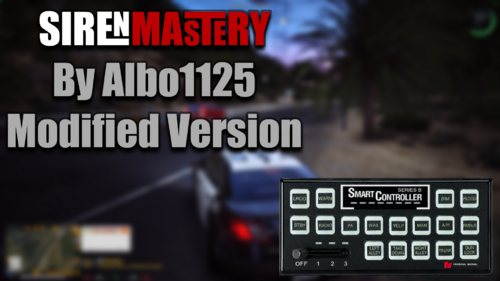
SirenMaster UI by IcrazyOfficial
Important
Please do not upload this file anywhere else.
This UI was created by IcrazyOfficial on YouTube. Please do not sell, redistribute, or profit from this file in any way.
If you'd like to share it with others, please share the official download link from either my LSPDFR page or my Patreon (it's free). This helps ensure everyone receives the latest version and proper support.
🎥 YouTube: IcrazyOfficial
Installation Guide
Step 1 – Install SirenMaster
Before using this UI, you must install SirenMaster.
Download it here:
https://www.lcpdfr.com/downloads/gta5mods/scripts/54553-sirenmastery-ui-only-mode/?tab=comments&sort=newest
Step 2 – Install the UI
Open the downloaded UI folder.
Copy all of the included files.
Paste them into your Grand Theft Auto V main directory.
Allow Windows to replace any existing files if prompted.
Thank you for downloading and using my SirenMaster UI! If you enjoy it, be sure to check out IcrazyOfficial on YouTube for more GTA V LSPDFR content, mods, and showcases. 🚔
1 Screenshot
SirenMaster UI by IcrazyOfficial
icrazyOfficial


![Nightz_Framework | All-in-One RP Economy & Character Framework [obfuscated]](http://s3-screenshots.int-cdn.lcpdfrusercontent.com/resize/500/-/monthly_2026_07/VuNt2JO-Imgur.png.a2f3fe1bdbcf551ed4ce638f90401364.thumb.png.38ce0cb0ec312ca7436778efebffad4f.png)

.thumb.png.c059142461ceedf235516f4de8168a3f.png)
.thumb.png.f25371bccb7c0fe7873ad8d076d719ee.png)


![2003 Chevrolet Tahoe LS Fire Car [VehFuncsV]](http://s3-screenshots.int-cdn.lcpdfrusercontent.com/resize/500/-/monthly_2026_07/GrandTheftAutoVScreenshot2026_07.30-09_15_23_80.thumb.png.49916302304c1d49afe1fb94518c5719.png)
Recommended Comments
Create an account or sign in to comment