


Luigi4518
Members
-
Joined
-
Last visited
-
-
-
-
-
-
-
-
-
-
-
-
Had a few reports of this, will look into it.
-
-
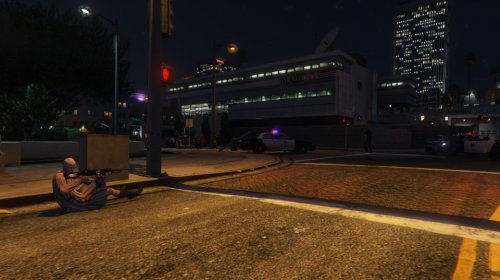 Yes this is for 0.3 and 0.3.1 I have an idea as to what maybe causing this. What call was this specifically caused by?
- 61 comments
- 17 reviews
-
Compatibility mod is out
-
I'm back... Long story short I had major problems regarding the GTA retail installer but I managed to get it fixed and have been powering through updating my callouts for the past 3 weeks so without further ado lets get onto the callouts. This update is for compatibility with the latest version of LSPD:FR, that being said a few major changes have occurred the first and foremost is that for the moment 'jailbreak' and 'ambulance hijacking' calls have been cut because they were not working as intended. Don't worry they will be back as soon as I work out whats causing the behavior but for the moment I've added a few new calls to keep people entertained. The second change is to how several of the calls work. To lay the groundwork for my major coming 'story-call' update 'A night at the movies', several calls are now location based. I have selected a few locations around San Andreas that make sense in the context of the call and LSPD:FR will give you the option to respond to the closest one to your current position. Well that's all for now. Compatibility update is drop shortly.
-
-
-
-
Currently I am using the following code to attempt to force my ped to get into the closest vehicle when they are on foot: foreach(Vehicle v in World.GetAllVehicles()); if (myPed.IsOnFoot) { myPed.Tasks.EnterVehicle(v, -1); } So far the ped reenters the starting vehicle, immediately get out of the starting vehicle and then runs away, never again attempting to steal other vehicles. What I want the ped to try and do is steal any nearby vehicle if they are on foot. Can anybody help me out here?
-
Ok so try this: Replace this: Game.SetRelationshipBetweenRelationshipGroups("MYENEMY", Game.LocalPlayer.Character.RelationshipGroup.Name, Relationship.Hate); NativeFunction.CallByName<uint>("TASK_COMBAT_PED", NPC, Game.LocalPlayer.Character, 0, 1); With this: Game.SetRelationshipBetweenRelationshipGroups("MYENEMY", Game.LocalPlayer.Character.RelationshipGroup.Name, Relationship.Hate); if (this.NPC.IsAlive) { NativeFunction.CallByName<uint>("TASK_COMBAT_PED", NPC, Game.LocalPlayer.Character, 0, 1); } This will make then fight the player for as long as they are alive. Does this work?
-
Ah ok Right so let me get this straight, you have the main callout project with all the files required for it to work, then you have a separate class file in which your building the code which you then transfer over to the main project?
-
We will start with trying to get your ped to attack. Do you have a section call "public override void Process()" withing you code? If you do, then place this a line beneath "base.Process();", It should look something like this. base.Process(); if (this.myPed.IsAlive) NativeFunction.CallByName<uint>("TASK_COMBAT_PED", myPed, Game.LocalPlayer.Character, 0, 1); replace "myPed" with NPC.
-
If the ped is supposed to attack the player you could try this: NativeFunction.CallByName<uint>("TASK_COMBAT_PED", NPC, Game.LocalPlayer.Character, 0, 1);
-
I have encounter that type of error before, it seems some ped models just don't like being spawned in, outside of very specific circumstances. Does that particular call still work sometimes or does it crash every time its called?
-
Somethings not working (Usually my code) as now its throwing a fit. It doesn't limit it by distance but now spawns the callout in only one place using old code that isn't even in the callout now. Would it help if I paste the callout or part of it here?
-
Currently I have a system for calling random spawn-points using a set of set coordinates using 'new random().next(x, x); Unfortunately this system gets buggy and can select points from any point on the map which often leads to either the suspect escaping instantly and/or lspdfr crashing. I'm hoping somebody around here would be able to point me in the right directing as to setting up a list containing the preset coordinates that can be randomly selected from within a maximum distance restriction.
-
Ah the million dollar question. I plan on releasing a small patch soon for the existing callouts which will see some major changes to how they play out. Don't want to give too much away but the shooting calls should be much more enjoyable and scene setting. As for the next big content update.. well most of the calls are stable and working but a few like to throw out all kinds of funky errors so when I get them sorted which shouldn't take too long it will hit the shelves.
- 61 comments
- 17 reviews
-
-

- 2
-
