RascarDK
Members
-
Joined
-
Last visited
Everything posted by RascarDK
-
 Brilliant mod to work with. Easy to understand how to use it's many features. A must have for anyone who likes their sirens and the ability to fully control them in every way.
- 851 comments
- 108 reviews
-
-

- 1
-
-
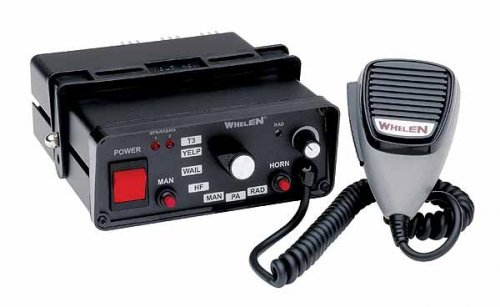 This mod is an overhaul of my old Whelen 295HFSA1 Siren mod for GTA IV. New in this GTA V version: Works with SirenMastery by Albo1125 Wail has been fixed and now loops perfectly. A manual Wail has been created. Airhorn size has been reduced heavily (Non-SirenMastery version) Mod Content: Two downloads available. One for SirenMastery and one to install the siren into the actual game. The latter replaces main police sirens. Loud and clear tones: Wail, Yelp, Piercer, Manual Wail, Airhorn Preview: Credits: Creating the siren tones and the mod for GTA V: RascarDK Real siren: Whelen Engineering Company, Inc. Screenshot: www.swps.com
- 1 comment
- 2 reviews
-
-
- 2
-
-
-
-
My Code 3 Mastercom B Siren mod from GTA IV, now for GTA V! Product Features: Wail, Yelp, HyperYelp and Air Horn. Loud and clear, realistic tones. Replaces main police sirens. Video Preview: Real life example Real siren: Code 3 Image: www.sirennet.com Gathering sound material and editing: RascarDK Exclusive to lspdfr.com
- 3 comments
- 2 reviews
-
-
- 1
-
-
-
-
-
-
-
-
-
-
-
-
-
-
-
-
-
-
-
-
-