


.jpg.de7988310dd078104ca58b3672478156.jpg)

STEVETHEGAMER
Members
-
Joined
-
Last visited
Everything posted by STEVETHEGAMER
-
Oh ok, with that error, try this http://download.cnet.com/Media-Player-Codec-Pack/3000-13632_4-10749065.html
-
The filesize is big because there isnt enough time to encode the movie while the game is running. The movie frames are slightly compressed, but still require a large amount of disk space due to the high resolutions. After you have finished capturing you can convert the clips into a compressed format using a video editing program. Probably the easiest one to use is Windows Movie Maker which is included free as part of Windows Live Essentials. It allows you to easily edit your clips and add text and other effects to your film. The end result will also be compressed into the Windows Media Video (WMV) format which can be played back in most media players. The other option is to follow this tutorial http://www.youtube.com/watch?v=4t1w-fc_R8E. But for me I edit most of my video using Powerdirector or Sony Vegas Pro, but they are not free.
-
-
-
-
-
-
You are welcome...
-
-
-
-
-
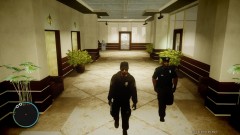 http://www.gta4-mods.com/player/multiplayer-police-outfit-v21-f11556
 -
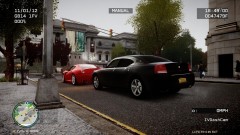 I'm still working on it...
 -
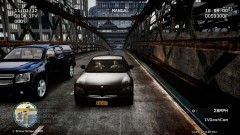 look really close
 -
-
EVGA P55 MICRO- The worst for overclock but I used turbo boost CORE I7 875k OVERCLOCK? @ 4.0 GHZ- It's finally stable since I have the H100 12GB DUAL CHANNEL OCZ- I crank up the voltage to 1.65 for overclock 500 GB Internal OCZ SSD- This only help me with loading time 2TB Caviar Green WD- This where I stored most of my mods GeForce GTX 570 XLR8 Edition- This do the job but temp stay at 70 to 80
-
Thank you for the advice, I love my GTX 570 and overheating is never a problem for me...
-
-
-
I was just playing around and decided to record myself for about 30 minutes, and here's how I was playing LCPDFR. I have some lags due to Fraps and also to all the high poly cars that I have driving around that drop my FPS to 30 while recording. This is my longest video so far. Let me know what you think.... http://www.youtube.com/watch?v=4Xhz_Ma0PvM
-
Great job....
-
The main question I have for you is " are you using ENB Settings? I can't play without my ENB settings which make LCPFR even more fun and realistic, but If I take it off it's great to get max FPS but I want better quality and great FPS...
-
-



