1997chevyboy
Members
-
Joined
-
Last visited
Everything posted by 1997chevyboy
-
-
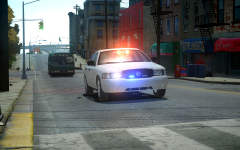 Oh hell yes, she is some beautiful! I deff would use it, any chance of a DEV version of this car?
 -
(Sorry for the repost) I just noticed the model is unlocked, i might take a stab fixing it!
- 18 comments
- 3 reviews
-
K i just tested it out and the is a major problem with the model. When you move the camera around the model the whole lightbar and every light texture spins with it! Please fix this bc other than that its an awesome firetruck!
- 18 comments
- 3 reviews
-
-
The numbers go from 1-5 being 5 different stobe patterns, im not shure if 0 is one pattern also!
-
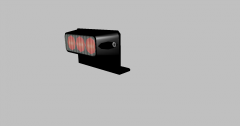 WOW great job! DEV section ?
 -
HAHA gotta be lightning fast to beat other ninjas!
-
Go to the ELS folder in your main GTA then look for default_config open it with notepad and look for these settings [ CORONAS ] Headlights = off, 0 Taillights = off, 0 IndicatorsF = off, 0 IndicatorsB = off, 0 Reverselights = off, 0 Turn on which ones you want to have strobes, and pic a pattern from 1-5 for each! Hope this helps!
-
-
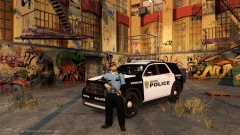 Nah man you are the newest member here LOL
 -
Here are two awesome ENB's that work well with LCPDFR and ELS! Low-Mid - '?do=embed' frameborder='0' data-embedContent>> Mid-High -'?do=embed' frameborder='0' data-embedContent>>
-
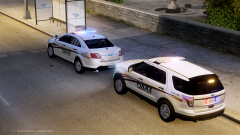 I like them, but would love to see the lights in action!
 -
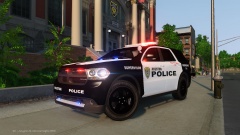
From the album: Final W.I.P's
Version 2 with black powder coated factory rims! -
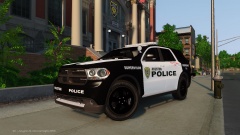
From the album: Final W.I.P's
Version 2 with black powder coated factory rims! -
LOL the argument has been over why are you adding fuel to this fire? Are you cold?
-
Its bc if you wanted to give any type of constructive comment about my model you would have mentioned something good as well about the model. Not just charger rims on a durango, like really you could have atleast said by the way nice skin, then it would have been a different story. Also i can take negative criticism just fine, but negative comment and OPINIONS are totally different!
-
You are 100% right, but this isnt the first time this has happened with the same few. I dont know why they feel the need to act the way they do, but its getting old. Thats not how you give constructive criticism!
-
Just thought i would let you know, i dont give a shit what the SSV Durango looks like! This durango is what i wanted to make, there is no law saying that i have to make models based on real units! If you want to make models that someone else designed in real life for a video game thats you, but i like to be different and make what i like and want so deal with it! Im shure many people in this community will gladly use my models!
-
AND who cares this is not based on any actual police unit! This is just what i imagined in my mind while putting the model together! If you want one without charger police rims, simply don't use it!
-
From the album: Final W.I.P's
This model was put together by me with the help of some awesome friends, thanks guys you know who you are! The skin is made by me along time ago for my clan, it will not be included in the release! This most likely will be my first model release! Please keep the comments to constructive criticism! Thanks and Enjoy -
-
I knew it would happen all along! Cant wait to see what the LCPDFR team will do next!
-
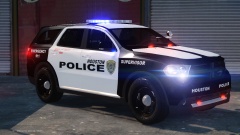 If enough people want it i will definitely release!
 -
Thanks man!