1997chevyboy
Members
-
Joined
-
Last visited
Everything posted by 1997chevyboy
-
 Sweet!
 -
 Oh im glad you like it!
 -
Awesome job, now let the haters hate!
-
 LOL wait till you all see the new ones!
 -
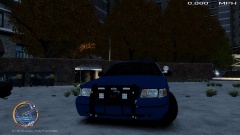 Really nice, i love the spotlights!
 -
Great job man!
-
-
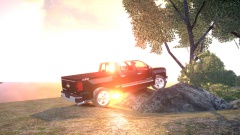 Well i figured you would know it was a joke, when i said it must be your monitor! But i guess you didnt catch on LOL.
 -
That is true!
-
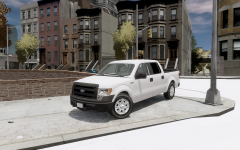
It was a joke, keep in mind that this truck is not complete, and still has alot of things that will be fixed! Also i know how my game works, but thank you anyway!
-
Thanks man!
-
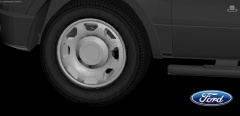
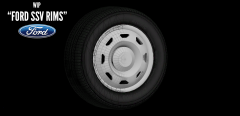
It must be your pc monitor! Thanks for the tip on the tires!
-
From the album: W.I.P
-
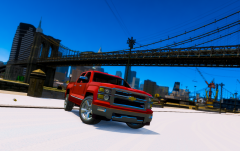 First of all i never said any names! Second my point was that how are other modders and converters going to get better when every time they do something new, all the guys that are capable and well known just bash on it and dont offer any suggestions or helpful information or tips! DONT YOU THINK?
 -
All i have to say is that, I dont know why you all feel the need to post negative opinions on new models that are converted or saying you wouldnt have done it like that? If you can do better, please do because i dont see any of you doing shit! You all know that the community could use new models besides the cvpi,charger,and tahoe! This is the reason nobody releases anything anymore because of people like all of you with your negative opinions! If you all are so good why not try to help or give constructive criticism to others that are still learning how! You know all of you had to start off not knowing the ends and outs, weather it be converting,3dmodeling or whatever we all needed help at some point! So please keep that in mind before you post negative opinions or comments, THANKS!
-
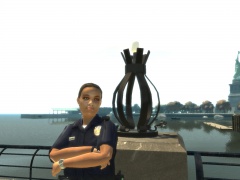
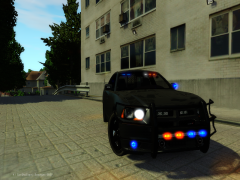 I wanna make love to her! Great job!
 -
Yeah SA convert-http://www.gta-full.com/2013/11/silverado-2014-gta-san-andreas-wip.html
-
Oh thats really mature of you! You shure did want that 2015 Tahoe though, that he converted!
-
You need to import your textures, then file merge the .z3d. Then you can export it as a .wft and it should work fine!
-
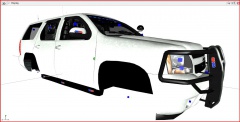 Its kool man thanks for the input, here is a pic of the rambar in game when i first started the tahoe!
 -
Thanks, i will look into scaling down the ions alittle. As for the rambar, NickieB's tahoe rambar is really round and bulky in my opinion! I personally prefer the more sleek and slim style brushguards, over the police tahoe rambar!
-
Actually i have seen this type of placement on many different units! Here is one, if you watch this video!
-
Thanks but they will be changed to all red and blue, or all blue!
-
From the album: W.I.P
85% Complete! May or may not be released! -
Happy birthday man!