
OblongGaming
Members
-
Joined
-
Last visited
Everything posted by OblongGaming
-
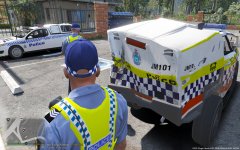
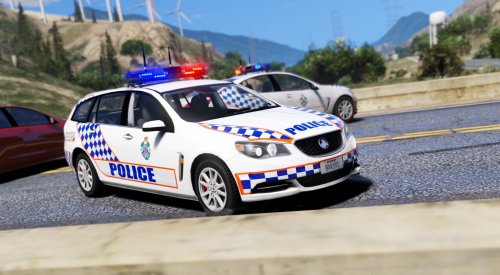
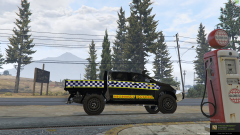
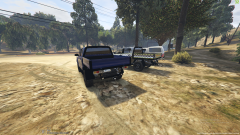
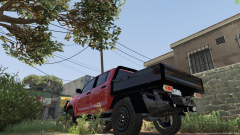
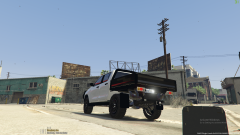
From the album: GTA V Western Australia
© OblongGaming
-
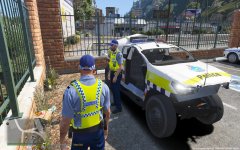
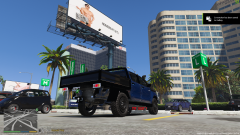
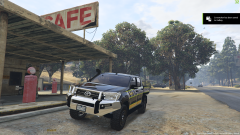
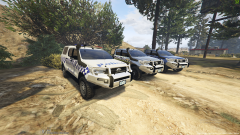
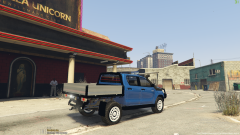
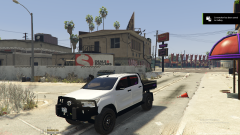
From the album: GTA V Western Australia
© OblongGaming
-
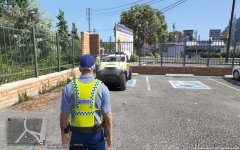
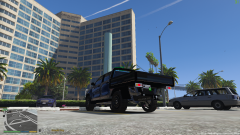
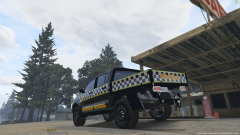
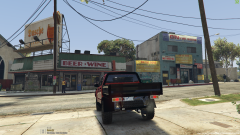
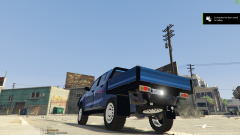
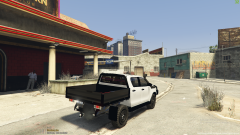
From the album: GTA V Western Australia
© OblongGaming
-
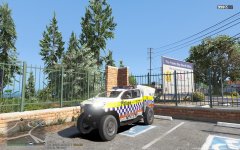
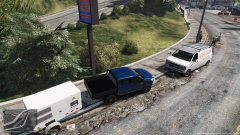
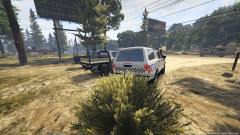
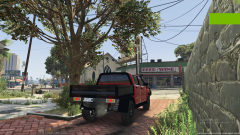
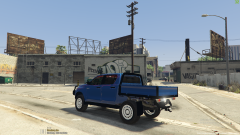
From the album: GTA V Western Australia
© OblongGaming
-
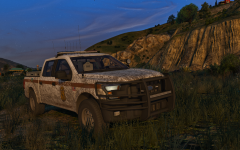 yes please do
 -
-
good work bud
-
 i think he is going to make it for other parts of Australia
 -
yeah the side where the police vehicle cars park and the tow yard is located, have that back door as the going off duty section especially when you have to run all the way around to the front of the davis sherriff department station just to go off duty
-
i wouldn't mind seeing a bit where you could go off duty in the back of the cop shop at davis police station
-
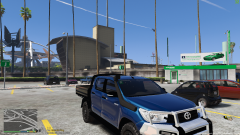 looking good, wouldn't mind seeing it with a pod on the back
 -
-
that, doesnt look to bad, @MooseYTY it almost looks like he could end up holding his baton, in his hands @SNIT good work bud
-
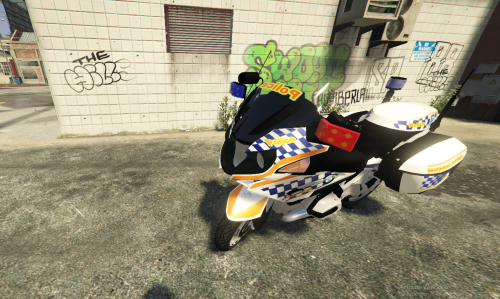 hey bud, if you use the one from another version of the same bike it actually works quite well, as to my testing lastnight
 -
-
hey koala, if i send you a dm would you be able to let me test out your unmarked toyota hilux
-
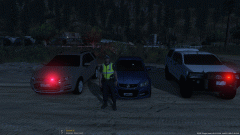 looks quite good, do u have discord
 -
wait since when did you have an unmarked toyota hilux with canopy in GTA V
-
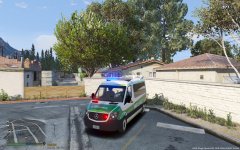
From the album: GTA V Western Australia
-
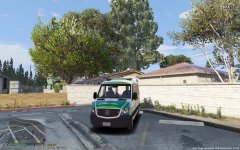
From the album: GTA V Western Australia
-

From the album: GTA V Western Australia
-
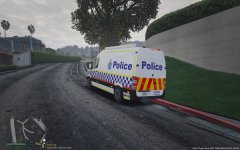
From the album: GTA V Western Australia
-
From the album: GTA V Western Australia
-
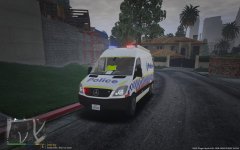
From the album: GTA V Western Australia
-
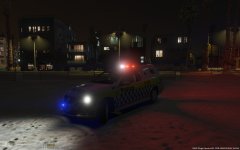
From the album: GTA V Western Australia
-
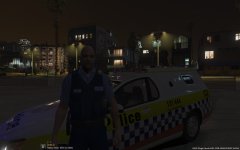
From the album: GTA V Western Australia