



Fmr MSPR
Members
-
Joined
-
Last visited
Everything posted by Fmr MSPR
-
From the album: MSHP Vehicle photoshoots
© State Ranger
-
Showing MSHP (Missouri State Highway Patrol) screenshots.
-
MSHP - AWD Charger
-
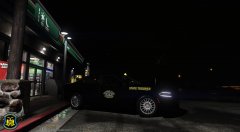 MSHP - AWD Charger
-
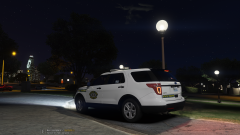 MSHP FPIU
-
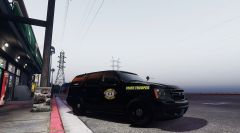 MSHP Tahoe
-
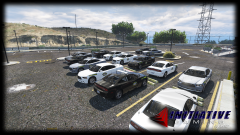 Missouri State Highway Patrol General Headquarters photo 2 of 2
-
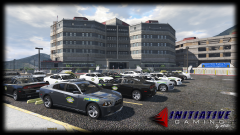 Missouri State Highway Patrol General Headquarters photo 1 of 2
-
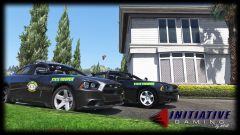 MSHP Chargers
-
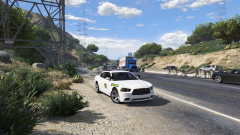 Missouri State Highway Patrol
-
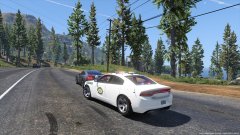 Missouri State Highway Patrol
-
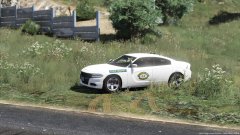 Missouri State Highway Patrol
-
 Missouri State Highway Patrol
-
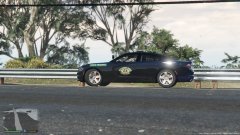 Missouri State Highway Patrol
-
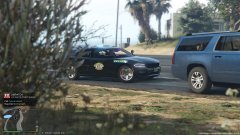 Missouri State Highway Patrol
-
.jpg.b577dc368cd404725b7c59b006efcbed.jpg) Missouri State Highway Patrol
Missouri State Highway Patrol
-
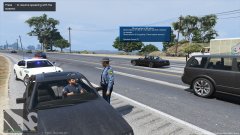 Missouri State Highway Patrol
-
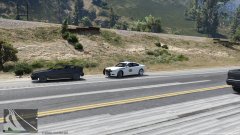 Missouri State Highway Patrol
-
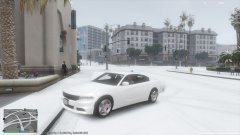 Snow day
-
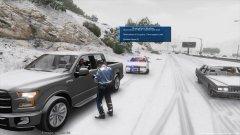 MSHP
MSHP
-
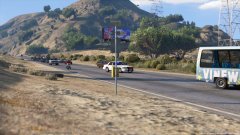 Missouri State Highway Patrol
-
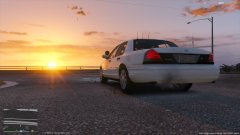 Missouri State Highway Patrol
-
-
From the album: MSHP Vehicle photoshoots
© State Ranger
-
-
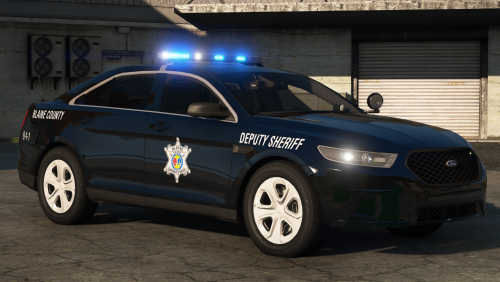 Omfg!! Downloading this when I get home from work!! Can we change the textures to make them red and blue?
- 46 comments
- 27 reviews
-
-

- 1
-
-
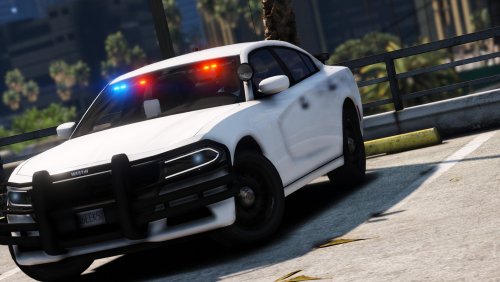 Make two files, one with hubcaps and one without! 😄 Unless you know how to make the one with hubcaps that replaces one the wheels in game. Been waiting on someone that can make the AWD wheels accurately (not oversized) and you did it!
- 19 comments
- 4 reviews
-
-
 Soo I keep coming back here everyday just to admire this AWESOME AWD Charger!!! This would definitely complete my MSHP fleet!! Since someone here knows how to make proper hubcap wheels! 😄
 -
I downloaded the OIV file and EUP menu, installed everything correctly, then loaded EUP and it still says ERROR Law & Order must be installed which I already have it installed. Any ideas?
-
So I did not use siren mastery, but renamed sirens to fit new ones, once in game there's no siren sound at all.
-
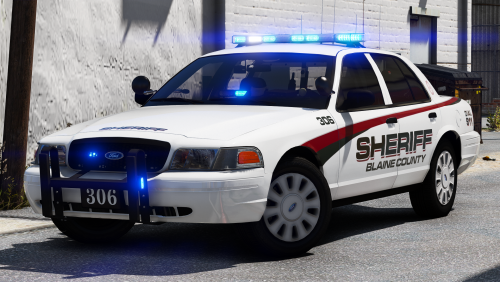 @t0y I finally got a chance to download this pack after upgrading my MB and CPU. I have to say, the vehicles are awesome!! I don't know if you noticed on the 2014 Doge Charger wheels are not centered. When driving the wheels roll but not in the center if you know what I mean?
- 43 comments
- 16 reviews
-
Take the template he provided and go on paint.net or photoshop and paint the template black or whatever color you like and then save it as Charger_sign_1 or whatever it says in the OpenIV ytd. Like police.ytd and scroll or search “sign” and if you see the livery replace it. Then save it.
- 43 comments
- 16 reviews
-
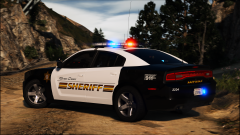 Ohh yeahh, Carper knows how to make really accurate wheels! I can see more and more accurate and very detailed vehicles are coming out!! Keep up the good work! You and Slendis can make some pretty damn good detailed vehicles! Getinmybelly keep up the good work on making HD liveries!!
 -
OMG who's charger is this? They know how to make the wheels accurate!!
-
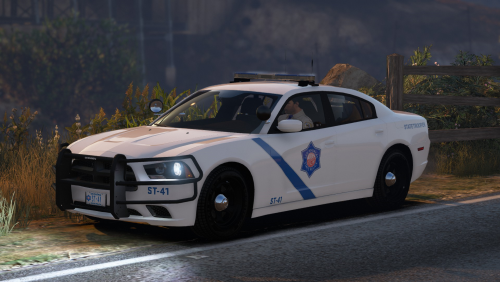 Oooo love the 2016 Explorer!! Would make it perfect if you can make the wheels like the one Slendis has, more accurate ones 😬 Using his image as example for the wheels.
- 19 comments
- 16 reviews
-
 Looks great!! The AWD Charger hubcaps looks huge! lol
 -
I tried naming the siren files to the original ones before rockstar updated. It doesn’t work lol
-
I made a copy of the stock sirens so I can go back to it. Hmmmm...I’ll have to try that and see. I know that the 0x0EA something file is gone in the new sirens rockstar uses
-
Yeah I was like why aren't my sirens working lol. I did try to rename the sirens from United States Sirens Pack to the new ones R* uses and sounds doesn't work. Hopefully Caine updates it, unless he doesn't know about it since people aren't complaining?
-
I'm not sure when R* changed the names. It's got bunch of SIRENS_WAIL, SIRENS_1,2,3,4, and SIREN_PA20A_WAIL
-
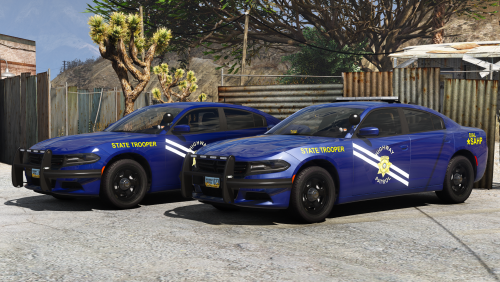 Download simple trainer from https://www.gta5-mods.com/scripts/simple-trainer-for-gtav When you spawn the car it has black light bar cause of the window tint. When you get the trainer go to vehicle options>vehicle mods>window tint>stock> something like that and put it to stock.
- 24 comments
- 9 reviews
-
Do you have simple trainer installed to where you can spawn vehicles and add other stuff? The other one about changing the textures is for ethanfreak
- 24 comments
- 9 reviews
-
Go to simple trainer or whatever trainer you have and go to vehicle mods then go to window tint and put it to stock. You have to find change the texture for light bar in the ytd file. Then head to ELS xml and edit the environment settings.
- 24 comments
- 9 reviews
-
Hey guys, Since R* updated the sfx files and siren names are different. Can we just download the siren pack files and rename them to whatever R* has them named to? I tried that and police sirens don't work.
-
PERFECT!! As far as I can see, everything is very detailed and accurate (wheels), not like others like to oversize the wheels lol.
- 24 comments
- 9 reviews
-
-
- 1
-

.jpg.b577dc368cd404725b7c59b006efcbed.jpg)
