




J T
Members
-
Joined
-
Last visited
Everything posted by J T
-
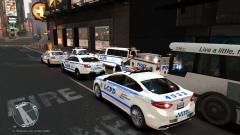 ahh lol that's weird..thanks
 -
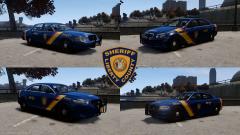 dayum
dayum -
From the album: lcpd
-
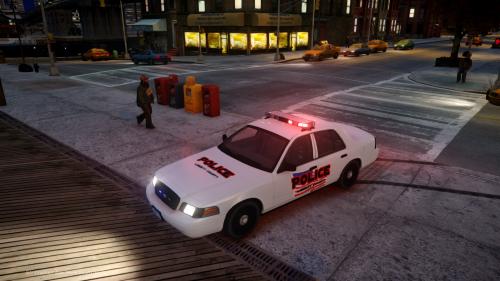 ^ what he said
 -
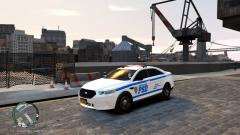 model http://www.gta-mod-center.com/forum/index.php?/files/file/314-2014-ford-taurus-police-interceptor-los-angeles-police-department/ the skins I would have to ask permission
 -
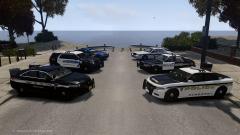 cool I like that model you should definitely release this pack...we need more new models anyway
 -
is that the updated interceptor? the 2010 by niki or him1250s model?
-
model is the lapd car by windows the skin prolly not since anyone can do it idk id have to get permission from abraxas
-
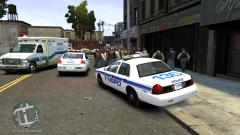 yeah ik ill use lapd cars for gta v but not iv I just meant for iv theres way to many lapd cars and they all have the same setup nothing new so its just irritating
 -
yeah no kidding theres a shit ton of jurisdictions in new York and new jersey that could be made but nah people want make florida, ohio, la, Georgia or some bs department...that's fine and dandy but gta v is here and we barely have any new York and new jersey cars...theres atleast 12 different jurisdictions in liberty that could be made but whatever just have to make texture edits for now until people make some real cars
-
based on new york co op police
-
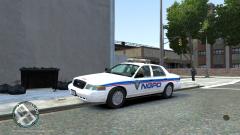
From the album: northern gardens police department
-
lol....I didn't make the car....btw we have to many fucking lapd cars
-
yeah that's what the co op pd in Brooklyn uses...well on most of them anyway
-
From the album: northern gardens police department
-
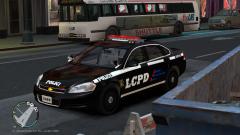 they also have them on some of the marked highway patrol just to bad no one bothers to make any
 -
its really sad that some people cant use there brains and have to resort to worrying about modding single player and rockstar....these people should just get banned all they do is spam with the same stupid questions over and over take a chill pill and step outside get some fresh air for a change if you are so worried about rockstar and modding...unbelievable
-
-
From the album: colony island public safety department
-
.jpg.b640ac0ec9119a017d1bc36d9106a5aa.jpg)
From the album: colony island public safety department
-
.jpg.b629ee7ec73a8de2dbde1fa23d2865bc.jpg)
From the album: colony island public safety department
-
this was in 2013 https://www.youtube.com/watch?v=iCQ-PunVTTU
-
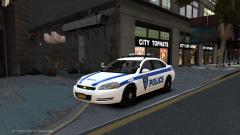
From the album: liberty alderney port authority
-
they are a cheap department I guess lol....the lcpd units do though Ill never understand why no one has created an lcpd pack with spotlights or a port authority pack for that matter
-
they can probably do what they did with the non els lights in lcpdfr 1.1 pushing / for different patterns and mute because we don't need an els system for v its good the way it is


.jpg.b640ac0ec9119a017d1bc36d9106a5aa.jpg)
.jpg.b629ee7ec73a8de2dbde1fa23d2865bc.jpg)
