

J T
Members
-
Joined
-
Last visited
Everything posted by J T
-
the us government created isis/al queda, using them as pawns in the middle east giving them an excuse to overthrow the countrie's government that they don't like and to install a central banking system...our loving government is the biggest sponsor of terror....not sure why some people are still not aware of this
-
I already have xpadder hopefully sam or the others can chime in
-
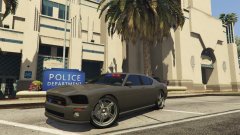 would be cool to see if franklins buffalo could be turned into an interceptor
 -
will this have controller support like 1.0?
-
-
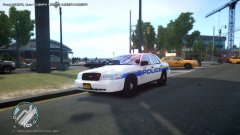
From the album: liberty transportation authority
-
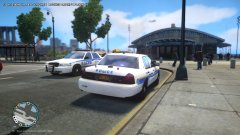
From the album: liberty transportation authority
-
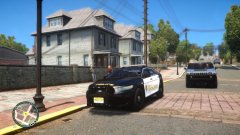 hell yeah gotta rep the local departments in iv
 -
From the album: alderney city police
-
lower the carspercycle then until it stops crashing
-
subscribe to https://www.youtube.com/channel/UCSbMBgkO2mgX2b0u2AkGirQ and https://www.youtube.com/user/THEMAJESTIRIUM1 and youll get an idea
-
trafficload and the trafficload asi and the msvcr100d all go in the directory
-
yea its not very compatible with 1070 use traffic load instead you can lower carspercycle if you have texture loss or crashes
-
-
you have got to be kidding...what police website has register and login on the front page? really? and you are asking that question
-
you should try exploring the game more theres plenty of fender benders people running red lights and speeders
-
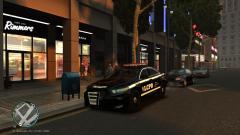
From the album: wip
-
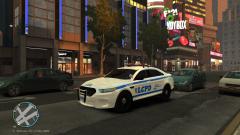 its an lcpd version I personally like it better that way...nypd versions wont have them
 -
-
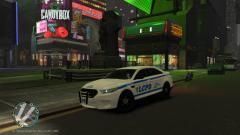 I cant find a good pic of the rear lights I did find this https://www.youtube.com/watch?v=KjsCJifLkEE
 -
-
yeah im using bxbugs vision lightbar and it will have a slim lighter and rear lights...lightbar will be spawnable grille lights and all
-
its an lcpd version so its based on the nypd mixed with default cars set up...the pushrod is scaled to about the accurate size
-
-
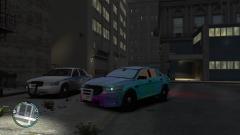
From the album: wip