
J T
Members
-
Joined
-
Last visited
Everything posted by J T
-
-
-
-
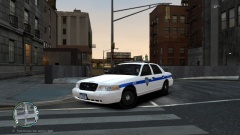
From the album: liberty alderney port authority
-
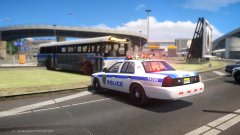
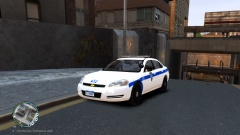
From the album: liberty alderney port authority
-
-
-
-
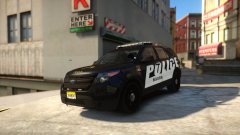
From the album: berchem police
new decals -
-
-
-
-
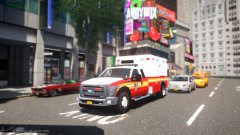
From the album: fire department liberty city
strolling by -
-
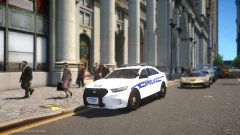
From the album: federal reserve police
for the private banking cartel -
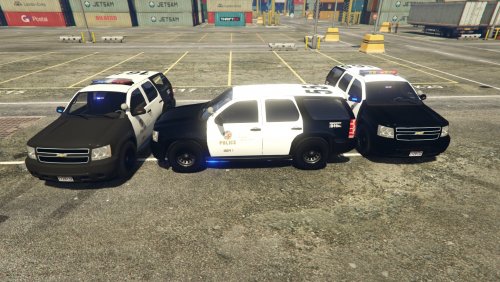 really nice set ups, I would recommend adding another spotlight to the passenger side since most police vehicles in California have two of them...kudos for updating the tahoe
- 118 comments
- 18 reviews
-
-

- 1
-
-
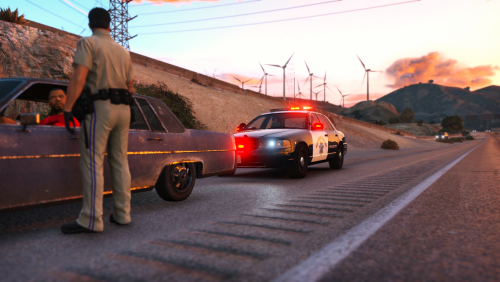 looks really nice only problem is the rambar lights don't work and I have it in hwaycar2 slot
- 95 comments
- 29 reviews
-
-
-
From the album: liberty transportation authority
-
 haha I forgot to change the suv one
 -
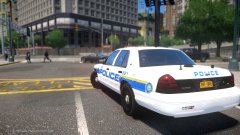
From the album: liberty transportation authority
-
-
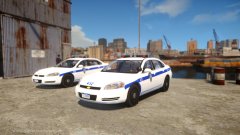
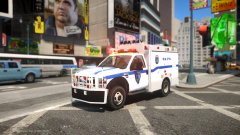
From the album: eastborough bridge and tunnel authority

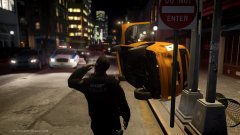

.jpg.e401b4b2272c7f3f694801b1c2fc6701.jpg)