


Officer Sosa
Members
-
Joined
-
Last visited
Everything posted by Officer Sosa
-
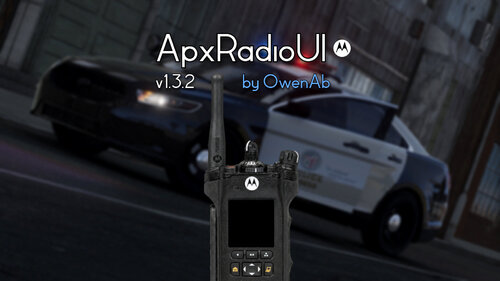 I’m not sure if I’m doing something wrong but it’s not loading up. I tried the plugins and plugins>lspdfr paths and I don’t see anything loading up in the Ragepluginhook.Log
- 77 comments
- 9 reviews
-
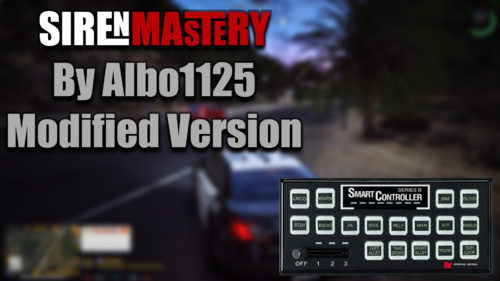 10/10 plugin I like both panels and I’m excited to see future updates for it.
 -
-
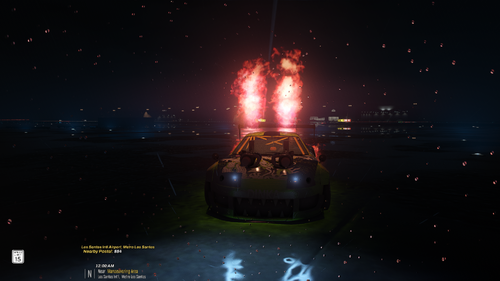 This is my preset you can use it if you want it looks nice for me it may not for you. I also have custom NVIDIA settings
 -
-
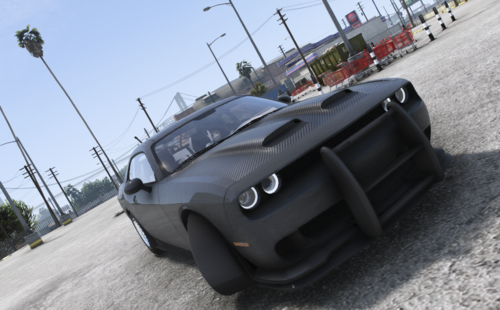 this isnt a charger and that isnt the hood the demons use thats for the hellcat Challenger redeye. its all just wrong
 -
-
.thumb.png.4ae541125774b3d59e60a0636013f9c1.png) Maybe your right but i pressed CAPS and RIGHT on the D pad (control) i dont put my hand on my gun. And your INI doesnt have a button config. also from reading another comment its not just me. take a look into if you want its no big deal really other than that the Plugin is amazing bro.
Maybe your right but i pressed CAPS and RIGHT on the D pad (control) i dont put my hand on my gun. And your INI doesnt have a button config. also from reading another comment its not just me. take a look into if you want its no big deal really other than that the Plugin is amazing bro.- 143 comments
- 12 reviews
-
are you able to add placing the hand on the holster like "Cop Holster" but other than that yours is coded much better the pistol would disappear after putting it back in the holster "Cop holster plugin"
- 143 comments
- 12 reviews
-
-

- 1
-
-
 Glad to know it’s not just me having this issue he will probably push a update for that soon
- 235 comments
- 32 reviews
-
@AstroBurgersi keep gettings file missing "newtonsoft.dll" but i know what im doing when it comes to plugins i dragged and dropped the folder
- 235 comments
- 32 reviews



.thumb.png.4ae541125774b3d59e60a0636013f9c1.png)
