.jpg.de22b43b0b6692578ff313553738099e.jpg)

iPayforyourEBT
Members
-
Joined
-
Last visited
Everything posted by iPayforyourEBT
-
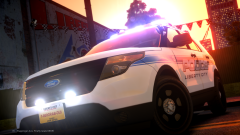
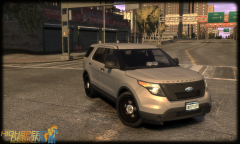
From the album: My GTA IV
Skin by BErad1502 -

From the album: My GTA IV
Skin by BErad1502 -
 No problem!
 -
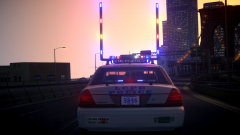 Thanks Ringo.
 -
-
From the album: My GTA IV
-

From the album: My GTA IV
Model by BxBugs123 -

From the album: My GTA IV
Model by BxBugs123 -

From the album: My GTA IV
Model by BxBugs123 -
 YES!
YES! -
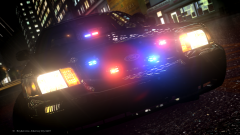 Thanks man!
 -
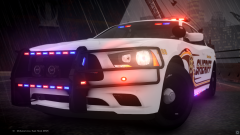
From the album: My GTA IV
Model by XxiJumpxX -

From the album: My GTA IV
Model by XxiJumpxX -
Thanks! Maybe this one will get featured.
-
Thanks!
-
Thanks man!
-
From the album: My GTA IV
Model by JokerMods -
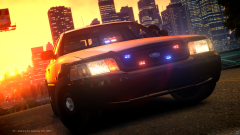
From the album: My GTA IV
Model by JokerMods -
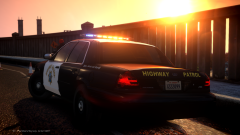
From the album: My GTA IV
Model by JokerMods -

From the album: My GTA IV
Model by JokerMods -
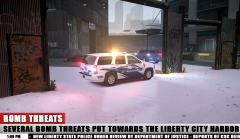 That 15 Tahoe in the background though.
 -
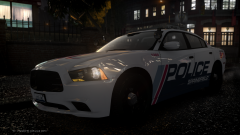
From the album: My GTA IV
Model by Jasonct203 -

From the album: My GTA IV
Model by BxBugs123 -
Here is what I came up with based on the build you posted above: http://pcpartpicker.com/p/kGLQBm If you could quote me back with a budget that would be helpful, just so I can know what you are willing to spend. With the build I suggested you should have no issues running any of the games above on medium-high settings. Also, if something is really cheap it is cheap for a reason. It is not a good idea to go with a cheap PSU, because that is what controls the power to the whole entire PC. It is also not a good idea to go cheap on the case either, a cheaper case could result in bad airflow thus, resulting in reducing the longevity on your components. Remember to quote me if you need help with anything else.
-
 If you haven't noticed, Bugs hasn't released anything in months. I highly doubt he will start now.