


NorthValleyExplorer
Members
-
Joined
-
Last visited
Everything posted by NorthValleyExplorer
-
-
-
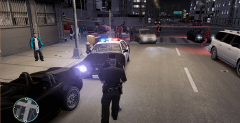 Great photo Andrew! Is it possible I can get that black texture for the improved cop ped?:)
 -
RDR of course!
-
-
My files were perfectly fine and 'unlocked' before using the auto installer for LCPD:FR 1.0. I can still open the files but if I make any changes to the files inside they do not save and show up in game. If anyone has any idea how I can 'unlock' my folders and files please let me know? :) UPDATE: Nevermind, fixed it. Thread can be locked :)
-
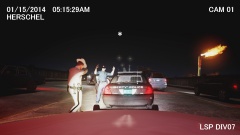 Simply amazing! And isn't this based off of the actual incident in Florida with the state trooper that stopped an off duty Officer? :P
 -
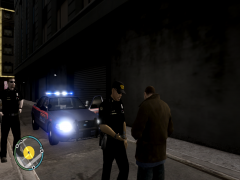 Nice picture! How do you get those shades?
 -
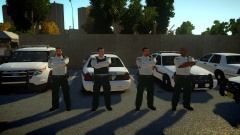 Looks amazing! I still cant find that animation :/
 -
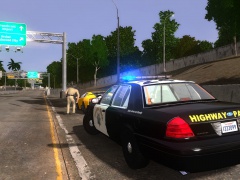 Looks amazing Sgt!
 -
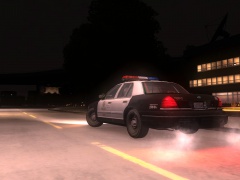 My favorite lightbar!:D
 -
-
-
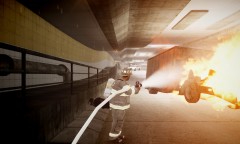 Looks great! This will be an amazing addition for FDLC RP! :D
 -
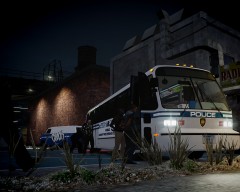 All he wanted to do was go bowling O:
 -
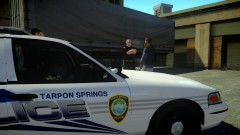 Loving those cars and uniforms!
 -
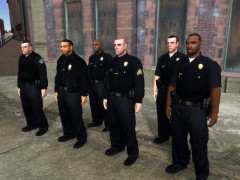 Is there any possible way that these will be for download soon??? :D
 -
I am right there with you!(:
-
 That's the thing. I can't texture haha
 -
Forgive me for asking but are those plain black uniforms available for download?
-
 Could I possibly have it as well?(:
 -
-
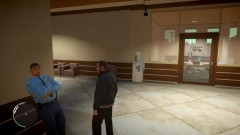 Niko is actually Serbian ^_^ But don't worry, common mistake made by many
 -
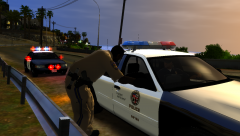 Hey, it happens from time to time
 -
Real quick, I have put the objects.ini file into my main directory. However, when I load the objects in game from my trainer I am teleported onto a roof top in Acter/Industrial Parks. The game says 499 objects loaded but nothing happens. Does anyone know what the problem is?


