


Mustu
Members
-
Joined
-
Last visited
Everything posted by Mustu
-
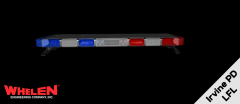
From the album: Mustu's WIP Vehicles
I revisited my old version on my CVPI, and fixed it! I might release an update of the CVPI if this works (hope it will). Changed: Basically, everything. 1) Used KevinDV's Liberty 2) Included the traffic emitter (turns red lights green, standard on all new vehicles) 3) Colored Tri Takedowns (also standard on all with TEs) 4) Proper LED Takedowns (standard on 1/2 IPD cars with TEs) I hope you guys like it! -
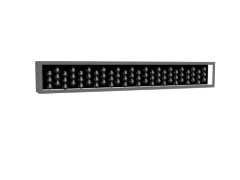
From the album: Mustu's WIP Vehicles
GTT Opticom Traffic Emitter for the Whelen Liberty. Scratch made by Mustu -
-
In game screens?
-
-
-
-
So basically you just made an ION? How is this "customized" iteration different from the rest?
- 9 comments
- 1 review
-
-
-
This morning, I got an OpenIV Update. I have used it a couple of times, but I don't even pay attention to the other options, as I just click into GTA IV so quick. I opened OpenIV, waited for it to load up while I looked at some posts here, and realized there's an option for GTA V. But, don't get your hopes up, there are only options for PS3 and Xbox 360, which brings me onto the question of how you would use it?
-
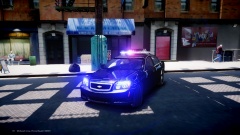 Not doing it anymore. The base model itself is way too unstable...
 -
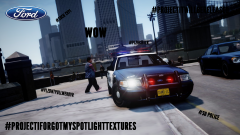
From the album: Mustu's WIP Vehicles
#WillBeReleased -
Speaking of which, yesterday's in LA scared the shit out of me.
-
The text seems to be blurry, and it's not your game, by looking at the graphics you run the game at.
-
-
-
I was born in Newport, and I am within 5 mins driving distance from there, this looks nothing like the cars there. Dafuq?
- 4 comments
- 1 review
-
 #PROJECTARMACONSOLE
 -
-
It's for events, to promote the LAPD
-
From the album: Mustu's WIP Vehicles
Thanks for your suggestions! So far, I've put in some LEDs just above the headlights (in the parking light are), and some blue/red LEDs as well as amber LEDs in the rear indicators. -
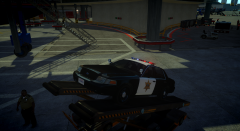
![[WIP] LCSO Caprice](//s3-gallery.int-cdn.lcpdfrusercontent.com/gallery/album_2409/sml_gallery_56737_2409_323297.png) Made by Hoffers I'll try my best to duplicate it. Is there any way that Hoffers could give me his?
Made by Hoffers I'll try my best to duplicate it. Is there any way that Hoffers could give me his? -
Lol, of course! Why would I be asking you guys?
-


![[WIP] LCSO Caprice](http://s3-gallery.int-cdn.lcpdfrusercontent.com/gallery/album_2409/sml_gallery_56737_2409_323297.png)