




Raylan Givens
Members
-
Joined
-
Last visited
Everything posted by Raylan Givens
-
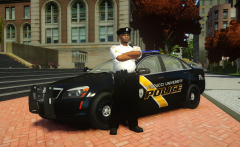 love it!
 -
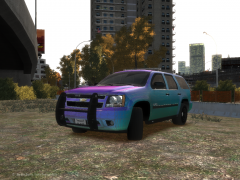 So far its working out GREAT!!
 -
Nah ill do my stuff the way i want, Also if you dont like what i do dont look,comment or think about click the link. So stay away.
-
Kid that aint sucking up. So keep your comments the negative ones to your self
-
Do u got one then. Lol
-
Thanks Chevy!
-
Ill look into it but ive never done it.
-
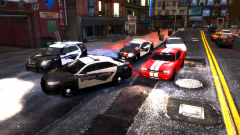 ^LOL^
^LOL^ -
Ah a +1 thank you to who ever did tht :D here's a update for you then :D
-
Here is a update on the Tahoe added some nice a** interior, we got the console, laptop, traffic cones, duty bags, flares, fire extinguisher, and a vest. Also added things added to the exterior including spotlight, antennas, and a radar piece. Hope you all like the updates.
-
Lol, ok :D, also here's a full rap. for you guys!
-
Ok ill try!
-
LOL Forward, ill do this light bar lol, i was doing the light bar you are using but since you are doing it, why would i do it. And vertex ill try to put a full rap around on it, maybe lol :D To all: Here is a update, I added Whelen ions to the push bar,
-
From the album: Srgt.Scales [WIP] [REL]
Howdy all, Just showing a project i started on, dont know if i want to finish it or what.. -
That's what ive been thinking lol.
-
Sorry cant edit but it works for GTA IV stand alone!! ive played for 30 min, and it works great! :D
- 14 comments
- 2 reviews
-
-
-
Thanks EVI
-
ok!
-
Thats sweet!!
-
Ok ill try also you took a pic like i did lol the second :D
-
Believe it or not it can handle alot ive tried alot of powerful enbs
-
Ive tried that one before didnt like it, It was to low for me.... Im looking for one for the best els realistic settings and visual and time cycle files and the others to make it real.
-
^ did it lol, Here: :D

