



Carrythxd
Members
-
Joined
-
Last visited
Everything posted by Carrythxd
-
From the album: Carrythxd's Pics [IV]
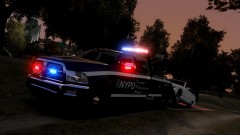
What do you guys think of the skin? Need any fixes or anything? -
 :D
:D -
From the album: Carrythxd's Pics [IV]
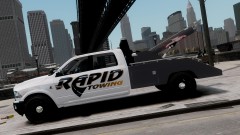
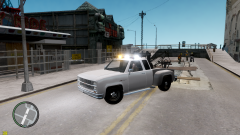
Them damn street racers.. (Yeah right, street racing in a Caprice. Seems legit.) BPM's 2012 Dodge RAM Power Wagon Tow Truck http://www.mediafire.com/?620e482akhm4k46 -
A LCPD:FR video with this map added to the VIDEOS section!
-
Nice find.
-
 Thank you :D
 -
From the album: Carrythxd's Pics [IV]
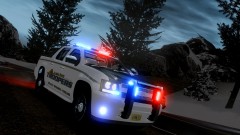
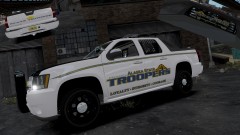
The skin is by Aznairsoftdude, I just made it fit this Avalanche. I think it looks pretty nice, what do you guys think? Car by Yakadafi (http://www.baycityrpg.com/updates/m/940695/article/134144/page/1) Alaska State Troopers skin for Tim98's CVPI by Aznairsoftdude. Aznairsoftdude's Alaska skin edited to fit the Avalanche by Carrythxd -
You rename em to police.wft & police.wtd for example.. Then you: http://www.youtube.com/watch?v=vc5GBldKvIo
-
 Its not unlocked...
 -
From the album: Carrythxd's Pics [IV]
The skin is by aznairsoftdude, I just made it fit this Avalanche. I think it looks pretty nice, what do you guys think? Credits to Aznairsoftdude. -
Have you tried different versions of ELS? ELS V5/V6?
-
Nice :)
-
Have you tried disabling the Trainer? Completely, not just the keys
-
Lmao! Great vid :D
-
 2011 Alaska State Troopers CVPI & 2010 Alaska State Troopers Dodge Charger (AST Vehicle Mega Pack)](//s3-gallery.int-cdn.lcpdfrusercontent.com/gallery/album_628/sml_gallery_2982_628_65469.jpg) ^ Oh yes, that would be lovely :D
^ Oh yes, that would be lovely :D -
-
From the album: Carrythxd's Pics [IV]
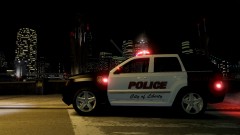
Corleone's 2008 Jeep Grand Cherooke SRT8 Whelen Liberty Coming soon! -
 I like Volvo XC90.. Thats the only Volvo I like lol :P
 -
From the album: Carrythxd's Pics [IV]
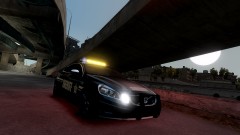
Alis_70's Volvo S60 Sheriff http://www.gta4-mods.com/misc/volvo-s60-sheriff-non-els-f19783 -
From the album: Carrythxd's Pics [IV]
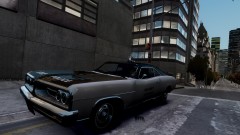
BOVRILwares' Vintage Police Cruiser -
A PC that can handle IV.. But Im guessing you already have that. Then when you have the game you need to install this patch: http://grandtheftauto.filefront.com/file/GTA_IV_Patch_1070;114377 And if you want to install LCPD:FR too once you have the game you need: .NET Framework 4: Full Profile, Visual C++ 2010 Redistributable & Games for Windows Live Redistributable 3. And ofc LCPD:FR installer:
-
Aaaw thx :D Day 55 is now up! Im using the Vintage Police Cruise that was just released! Day 56 with a Volvo S60 Sheriff coming in the next few hours! Day 56, 57 & 58 now up! Day 60 is now up :D Day 61 is now up! :D Day 62 is now up! :D Day 63 is now up! :D Day 64 & Day 65 are now up! :D Also sorry for the inactivity for the last few days, had some problems with my modem but they are fixed now :) MODERATOR NOTICE Octo-post merged. ~Break
-
I like your wallpaper too. :D And nice tutorial :)
-
 Great! :D
 -

 2011 Alaska State Troopers CVPI & 2010 Alaska State Troopers Dodge Charger (AST Vehicle Mega Pack)](http://s3-gallery.int-cdn.lcpdfrusercontent.com/gallery/album_628/sml_gallery_2982_628_65469.jpg)
