
Carrythxd
Members
-
Joined
-
Last visited
Everything posted by Carrythxd
-
I would like to have it :)
-
Yeah, its there (http://www.lcpdfr.com/files/file/1119-2010-gmc-yukon-fbi-hrt-evi-yakadafi/) but open it.. It says "Sorry, we couldn't find that!" :(
-
Yeah, try Corleone's Mr. Tasty Surveillance Truck: :D
-
^ But yeah, it depends on whats your PC specs.. Also it depends on if you want to have traffic or not..
-
Yes, change the left=Left to left=Q and right=Right to right=Q for example
-
Yes, its possible to do that.
-
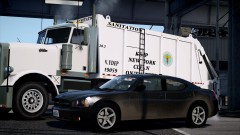 lol :P
 -
From the album: Carrythxd's Pics [IV]
Tim98's 2010 Dodge Charger Unmarked/Slicktop VIDEO: -
-
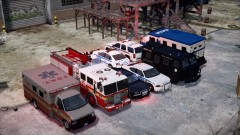
From the album: Carrythxd's Pics [IV]
FDNY Ambulance & Firetruck (yes the Firetruck still says FDLC on the front but Im working on that lol) and NYPD FBI, Noose, Police 1, Police 2, Police Stockade & Noose Stockade -
Try setting it to 9.. It worked for me, in every Trainer version. And yes, Im using V6.5 too
-
I think its released.. Lemme see if I can find a link EDIT: http://www.gta-modding-chest.com/database/142-2013-poice-interceptor-generic-lcpd/index.html?saved=1 But it doesnt work, seems like that EVI took the download down.. And I dont have the car on my PC anymore
-
 Thank you :)
 -
 Yeap
Yeap -
 Its a mix of NGT ENB, L3EVO 2012 NY & NGT ENB V3
 -
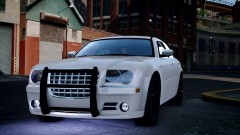
From the album: Carrythxd's Pics [IV]
NameLess_BLC's Chrysler 300C FBI Edition http://gtamania.ru/load/cars_for_gta_4/special_vehicles/chrysler_300c_fbi_edition/205-1-0-2342 -
Do you guys have the "VehicleLivery=0 //Trainer mapped Livery" in Trainer.ini set to 9? Like this: "VehicleLivery=9 //Trainer mapped Livery"
-
Yeah, SparkIV works
-
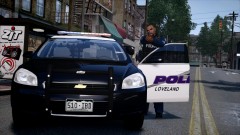
From the album: Carrythxd's Pics [IV]
RobertB's 2010 Impala "Loveland Police Department" Coming soon... -
-
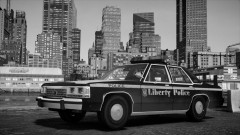
From the album: Carrythxd's Pics [IV]
00Stevo's 1989 Ford LTD -
Remove the "&feature=player_embedded" from the vids url and it should work :P
-
-
No dont think so :(
-
its BM diversion :) You can find it from: More Objects Menu -> Objects Set 2