
Y0TELEX
Members
-
Joined
-
Last visited
Everything posted by Y0TELEX
-
This is probably a dumb question, but I have seen it happen before. Did you install the RageNativeUI.dll in the MAIN directory and install the menu dll in the main plugins folder? I have seen some people install it in the LSPDFR plugin folder. Also I believe you have to have Law & Order for it to work, at least on my end that's how I got it working. Should look like the attached picture.

-
Yes, this should work. However if you plan on streaming it as well you may run into a little lag possibly BUT overall this is a decent setup for it. I would upgrade the SSD though if you could. 500mb isn't a ton of storage, but if LSPDFR if all you plan on playing then you should be fine. The GPU is about average, but it has a good processor.
-
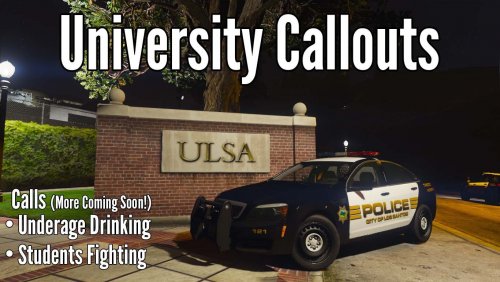 Yessss we need more campus related calls. Here's just some suggested call-outs related to campus area (if possible that is!) * Noise Complaint (Frat/Sorority Party) * Missing Student (Person) * Student Escort (Our University offers police assistance with escorting students places at night * Vehicle burglary (very common on campuses) * Vandalism * Stalking Report * Alcohol/drug Violation * Weapon Violation (being that no weapons are allowed on campuses generally) * Unknown trouble / Disturbance * Domestic Violence I will definitely use this in the meantime and test it out though. Thanks!
- 38 comments
- 4 reviews
-
-

-

- 14
-
-
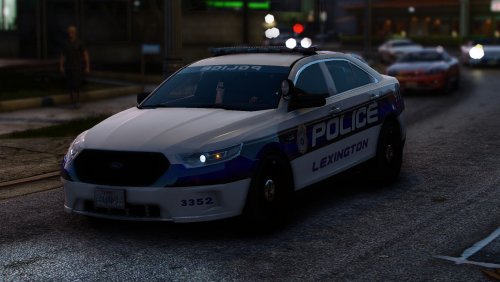 As a Kentuckian, I approve of this upload 👍
 -
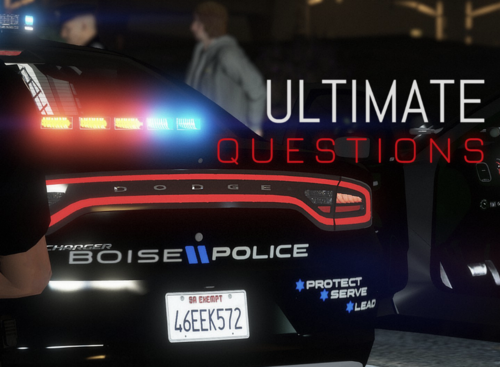 This is such a great upgrade! Sereous has been putting in work! 10/10 would recommend for anyone wanting a more realism feel.
- 184 comments
- 72 reviews
-
-
.thumb.png.28aa0963faa0c6b7fe8ec683d28ec677.png) This little guy meets all of the requirements I look for in a quality police vehicle. 1) Is it sexy? Try super sexy. You want to marry this after the first date. 2) Is it intimidating? Fuck yes it is. Im afraid to even open the door on this beast. 3) Is it safe? When you live on the edge in this baby you don't worry about something as minuscule as "safety". 4) Does it get the job done? Not only does it get it done, you don't have to even work in this baby. Sit back and enjoy the ride. 10/10 would bang.
This little guy meets all of the requirements I look for in a quality police vehicle. 1) Is it sexy? Try super sexy. You want to marry this after the first date. 2) Is it intimidating? Fuck yes it is. Im afraid to even open the door on this beast. 3) Is it safe? When you live on the edge in this baby you don't worry about something as minuscule as "safety". 4) Does it get the job done? Not only does it get it done, you don't have to even work in this baby. Sit back and enjoy the ride. 10/10 would bang.- 17 comments
- 5 reviews
-
-
- 10
-
-
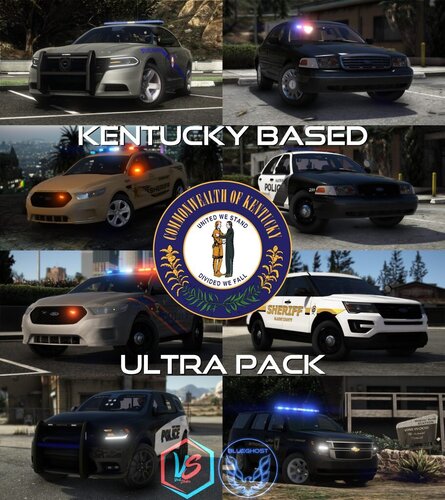
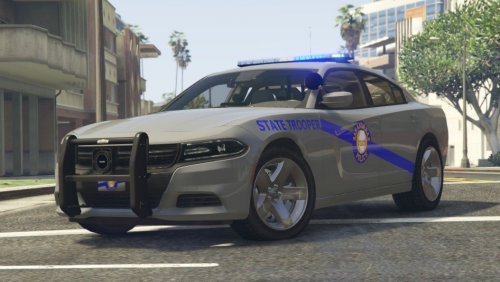 As a Ketuckian I can fully appreciate the detail put into this pack. Excellent job Sir! Highly recommend this pack. I will be using it for quite a while 👌
- 33 comments
- 12 reviews
-
-
- 1
-
-
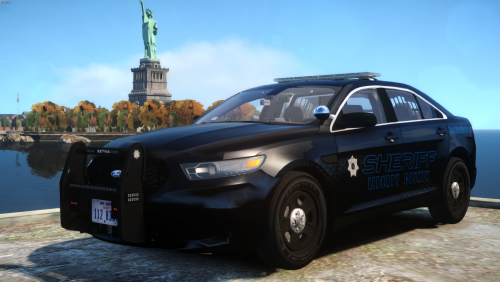 Absolutely beautiful vehicle and light setup. Works great in game too. Great job on this!
- 5 comments
- 3 reviews
-
The murder scene shot is incredible. People don't always realize how hard it is to catch a good moment like that. Great work dude, keep it up!
-
-
-
-
-
-
-
-
-
-
I have default keys and E turns my lights on and J activates the sirens. Unless you've changed your key bindings that may work for you as well.
-
-
Go friggin' figure...I get a new job and a huge tax return then the world goes to shit..let's hope I never win the lottery
-
Alt+B is generally for foot backup though, like at a shooting. If you call in backup with Alt+B on a pursuit they will just go to where you called for them at and sit there..generally. Also I hit Alt+E to inform dispatch that I am in a pursuit and I just have no luck with getting backup. It worked fine before the 1.0d update.
-
It works fine for me with Google Chrome as well.
-
Hey all, I have been having a problem where I have absolutely no backup units on pursuits. I call the pursuit in (Alt+E) but no backup units ever show. If I call a helicopter however he shows up and supports. Anyone know what could be causing this issue and or how to fix it? Thanks!

.thumb.png.28aa0963faa0c6b7fe8ec683d28ec677.png)