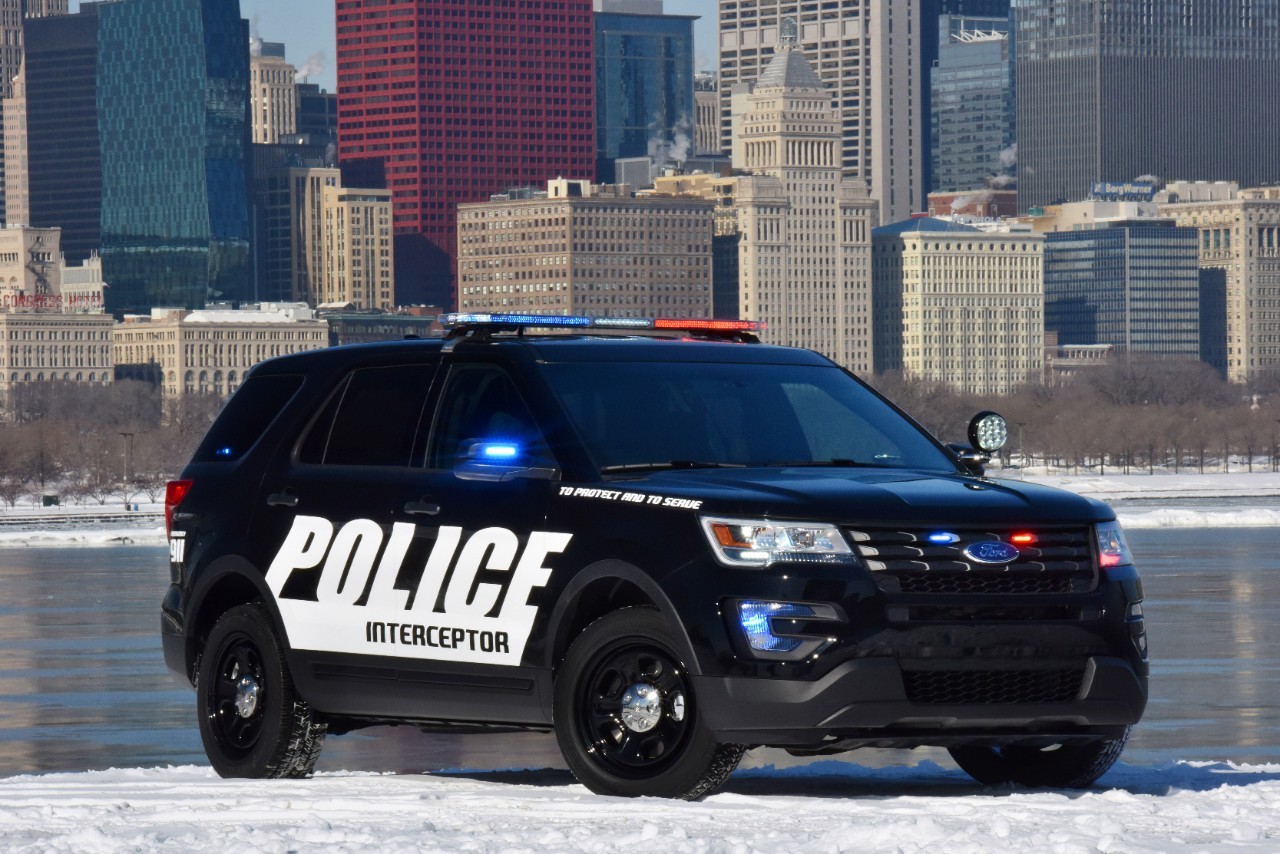
Due to the fact I am finished school, and I do need to earn some money, I will be occasionally taking breaks from LCPDFR.
Sometimes they might be a few days, other times maybe a few weeks.
I will still do my best to release some more vehicles when I can, and I will visit to check PMs.
But as of August 25/2014 I will be decreasing my online time, and be focusing more on things outside of GTA IV, LCPDFR, etc.
If I ever decide to permanently quit GTA IV, LCPDFR, etc. it will be said in the About Me section on my profile.
Please Note: I do not take GTA IV vehicle or texture requests at this time & currently do not have zModeler3 for GTA V/ FiveM vehicle models.
Please note, the following sites are currently where I release my content:
- LCPDFR.com
- LCPDMods (GTA Mods DB) - Offline
- GTA Mod Shop - Offline
Knight Rider - Code Two Modifications © Copyright 2014 - 2020
The following people are allowed to release MODs under the Code Two Modifications name:
-> Anyone else releasing anything under the Code Two Modifications name that isn't listed here should be reported.
-> KN1IGHT
)
GTA Online/ Social Club Name (GTA V): GamerPaul101
GFWL Name (GTA IV): GamerPaul101
Note: I can & will remove any rude, or disrespectful comments from any Tweet on my Twitter profile & any post on my Instagram
Last updated Sept. 21/2020