



Lennyy
Community Team
-
Joined
-
Last visited
Everything posted by Lennyy
-
Not that I know of. I taught myself.
-
Remove MoreRadioChatter and retry.
-
Double check your EUPMenu ini files. Something has been added twice there when it was only supposed to once. In this case, nothing related to Ultimate Backup. Your topic has been moved to GTA V Support, this is not LSPDFR related. Please post in the correct location in the future.
-
Tu chercher des vehicules addon EMS et police?
-
Always attach your log right from the start if you deem it to be important.
-
Download this: https://github.com/alexguirre/ragenativeui/releases/latest/ Drag the .dll into your main GTA directory
-
Attach your latest RagePluginHook.log please.
-
Attach your latest RagePluginHook.log found in your main GTA directory.
-
It requires a bit of editing and messing with ELS xmls (I'll assume you are using ELS). Take a look at this: https://www.lcpdfr.com/downloads/gta5mods/misc/39997-els-siren-hashes-2022/. You'll essentially want to replace sirens other than Police Primary and Police secondary (which the cop cars use as default). Choose for example the granger files and install your rumbler wail and yelp into those slots. Then edit the ELS xml files to have the siren stages (number keys from 1-2 and 3-4 use the tones you want (for example, non rumbler, 1 and 2, rumbler 3 and 4). The number 5 key is like a mixed mode where it plays all your tones in a mix and the 6 key echo's your default siren. It might seem overwhelming but that's the way I'd probably try doing it (fyi, keep the awc files size limit in mind). Your topic has been moved to GTA V Support, this is not LSPDFR related. Please post in the correct location in the future.
-
Attach your latest RagePluginHook.log.
-
Does it launch without RPH at all?
-
Quelle mod?
-
Force the crash and then attach a new log please.
-
Exception message: Could not find a part of the path 'C:\Program Files (x86)\Steam\steamapps\common\Grand Theft Auto V\plugins\LSPDFR\GrammarPolice\textures\radio'. Make sure Grammar Police is properly installed, especially this texture. Your topic has been moved to LSPDFR 0.4 Support. Please post in the correct location in the future.
-
If you mean vehicles flipping, just give them a better handling ID.
-
DId renaming the keybinds to None solve your issue?
-
Perhaps this? https://www.lcpdfr.com/downloads/gta5mods/vehiclemodels/31838-els-los-santos-pd-mega-pack-lapd/ https://www.lcpdfr.com/downloads/gta5mods/vehiclestextures/43935-lapd-4k-texture-pack-for-tacticaldonuts-los-santos-pd-mega-pack-lapd/
-
Do you have a mods folder? If so, rename that to _mods and retry. If it doesn't crash it's a mod that causes it.
-
That's fairly easy to solve. Open your GTA V main directory > lspdfr folder > keys.ini. Set Backup Menu and Traffic Stop Interaction to =None.
-
Oh that is the official RDRFR mods discord. While it hasn't got anything to do with LSPDFR, you can still join it to obtain your role. As for your issue, does your game crash when doing something specific?
-
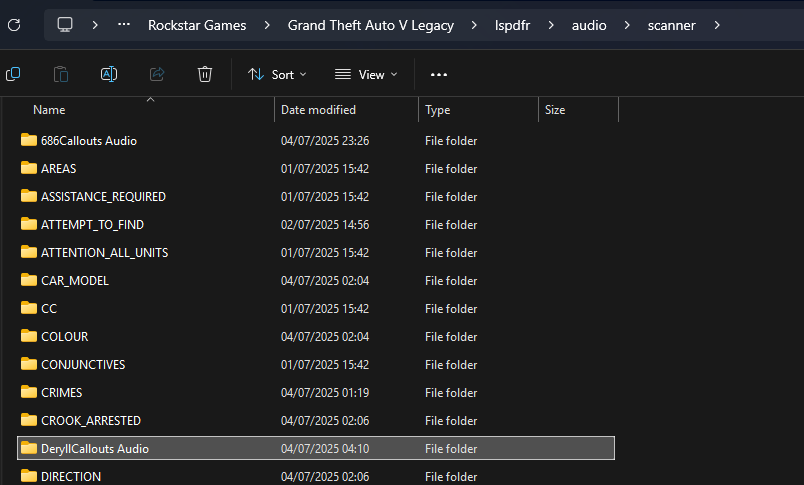
Refer to this topic please:
-
-
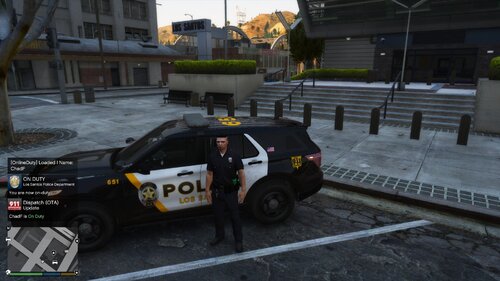 Or... you include the folder structure in your download file similar to other big plugins. That way the user only has to drag the plugins folder into their main GTA V directory and it'll end up in the correct spot 😄
 -
Try deleting your PlayGTAV.exe from your main GTA V directory and then verifying your game files. Maybe that helps.
-
Add those plugins and attach your RagePluginHook.log afterwards.



