



Lennyy
Community Team
-
Joined
-
Last visited
Everything posted by Lennyy
-
That is not the reason your game isn't working. This is your current issue: Failed to find file:lspdfr/data/cop_presets_outfits.xml Please ensure the file is in the location it is supposed to be in. In this case, redownload the manual installation of LSPDFR and put the file in the correct location.
-
As-tu une photo de ton problème ?
-
This EUP package is not designed to be compatible with the current version of EUP L&O. You'll have to find an updated package for the most recent EUP 9.3.1. I'm not sure if there are any for British uniforms. Your topic has been moved to GTA V Support, this is not LSPDFR related. Please post in the correct location in the future.
-
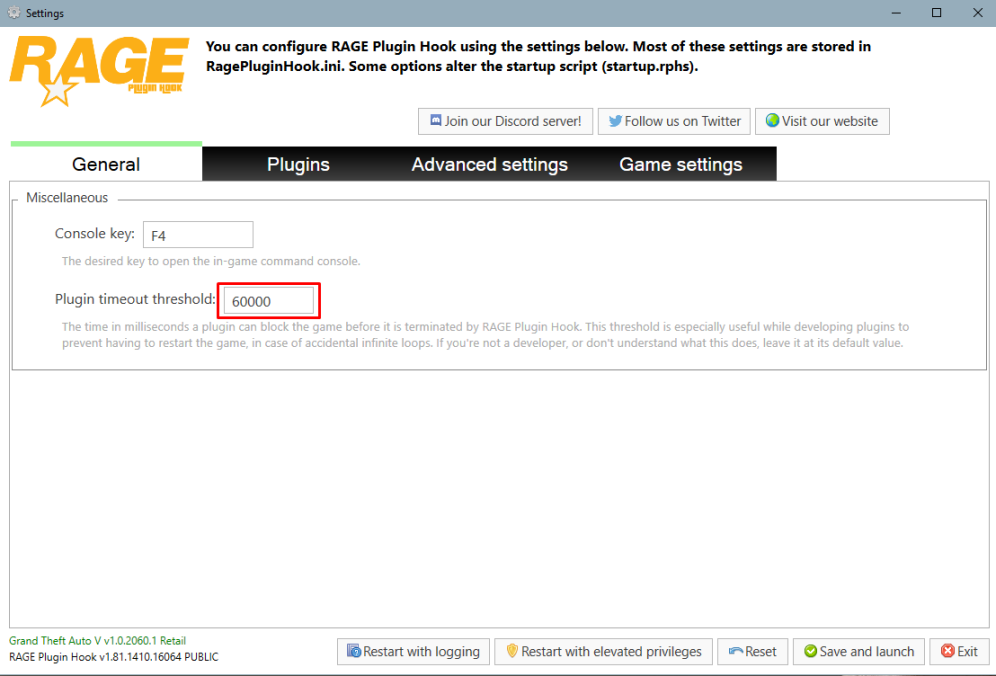
Start Rage and click on the cog icon ⚙️. Set the displayed number to 60000 instead of 10000.
-
Upload your latest RagePluginHOok.log. It's a text document found in your main directory.
-
Start Rage and click on the cog icon ⚙️. Set the displayed number to 60000 instead of 10000.
-
-
-
Hello kenzin, Down below you'll find some resources on how to install LSPDFR. For installing LSPDFR-Plugins, you will find instructions on the download page of each plugin. Make sure to read those thoroughly! https://www.lcpdfr.com/lspdfr/how-to-install/. Your topic has been moved to LSPDFR 0.4 Support. Please post in the correct location in the future.
-
Redownload the latest version here. That build should fix the log spam issue.
-
Can you attach a screenshot of the error.
-
Which car did you add right before this issue came up?
-
I'm afraid not. You can try to install ClearTheWayV and see if that makes it any better.
-
Either your visual mod has it's own brighter lights option (I use VisualVanilla which comes with the option to brighten the lights). Or you install something like BetterRadiance.
-
Navigate to .\lspdfr\lspdfr.ini and set "AmbientSpawn.DisableRandomUnits = true". Report back once you've tried that. Also, you have TrafficPolicer installed which is heavily outdated. You might want to try StopThePed instead.
-
Das heißt, dass eine deiner Mods aus dem mods Ordner das Problem verursacht. Dagegen kannst du leider nichts machen außer die problematische Mod nicht zu installieren.
-
You're missing the PyroCommon.dll. Move that file from the DeadlyWeapons download archive to your main game directory. Move CalloutInterfaceAPI.dll from ./PluginsLSPDFR/ to your main directory. Update GrammarPolice Kuchera Callouts Super Callouts
-
Please upload your latest RagePluginHook.log. It's a text document found in your main game directory. Your topic has been moved to LSPDFR 0.4 Support. Please post in the correct location in the future.
-
The car you are trying to use is not compatible with PoliceMenu since it's missing a certain vehicle bone. Other than that you have no issues really. Did removing S136Callouts from your game help with the immense log size?
-
Your topic has been moved to GTA V Support, this is not LSPDFR related. Please post in the correct location in the future.
-
Can you remove Section136callouts from your plugins folder and start the game again? It might generate a smaller log.
-
You’re welcome!
-
There’s nothing that can be lost since your are missing the outfits.xml entirely. Redownload the manual LSPDFR install, open the lspdfr\data folder and drag the outfits.xml into the same path within your GTA installation.
-
You’re welcome!
-
You download the LSPDFR archive again and drop the outfits.xml in .\lspdfr\data\



