NOTE:
Please do not DM me for support regarding GTA IV/V, RPH or LSPDFR/LCPDFR as it's against the site-wide guidelines. For assistance with these topics, create a new thread in the appropriate subsection of the support forum.
Should you have any questions or concerns specifically related to the LCPDFR.com website, feel free to reach out to me directly at any time.
Hallo! 🇩🇪
I'm Lenny, and I live in Germany.
I've always been a PlayStation gaming enthusiast, but I never owned a PC before mid-2019, when I bought my first gaming rig and got into LSPDFR.
I joined the LCPDFR.com website in mid-2020, and it didn't take long to dive into the world of GTA V and LSPDFR modding. What started as troubleshooting my own issues quickly turned into helping, and I became an active part of the Support Forums.
I have been a member of the LCPDFR.com Community Team since December 2023. Alongside @UnknownBastion, @Yasd and @unitedOrange66, I help moderate the Support Forum, ensuring users post to the correct subforum and receive the help they need.
I also manage our very own LSPDFR Instagram page.
When I'm not playing games on my PlayStation or moderating the forums, I enjoy travelling 🛫, watching football ⚽, or watching my favourite TV show, The Mentalist.
I'm looking forward to seeing you around the forums - happy policing! 🚔👮♂️
If you'd like to see what mods I am using, you can check out my mods list here: https://www.notion.so/GTA-V-LSPDFR-Mods-List
(Note: this list is currently outdated as of 20/07/2026 as I've recently fully switched to GTA V enhanced. If you are interested in a mods list for enhanced, please PM me).
Credits:
Avatar: EUP/Vest/Passat by MaxDesigns/GFP
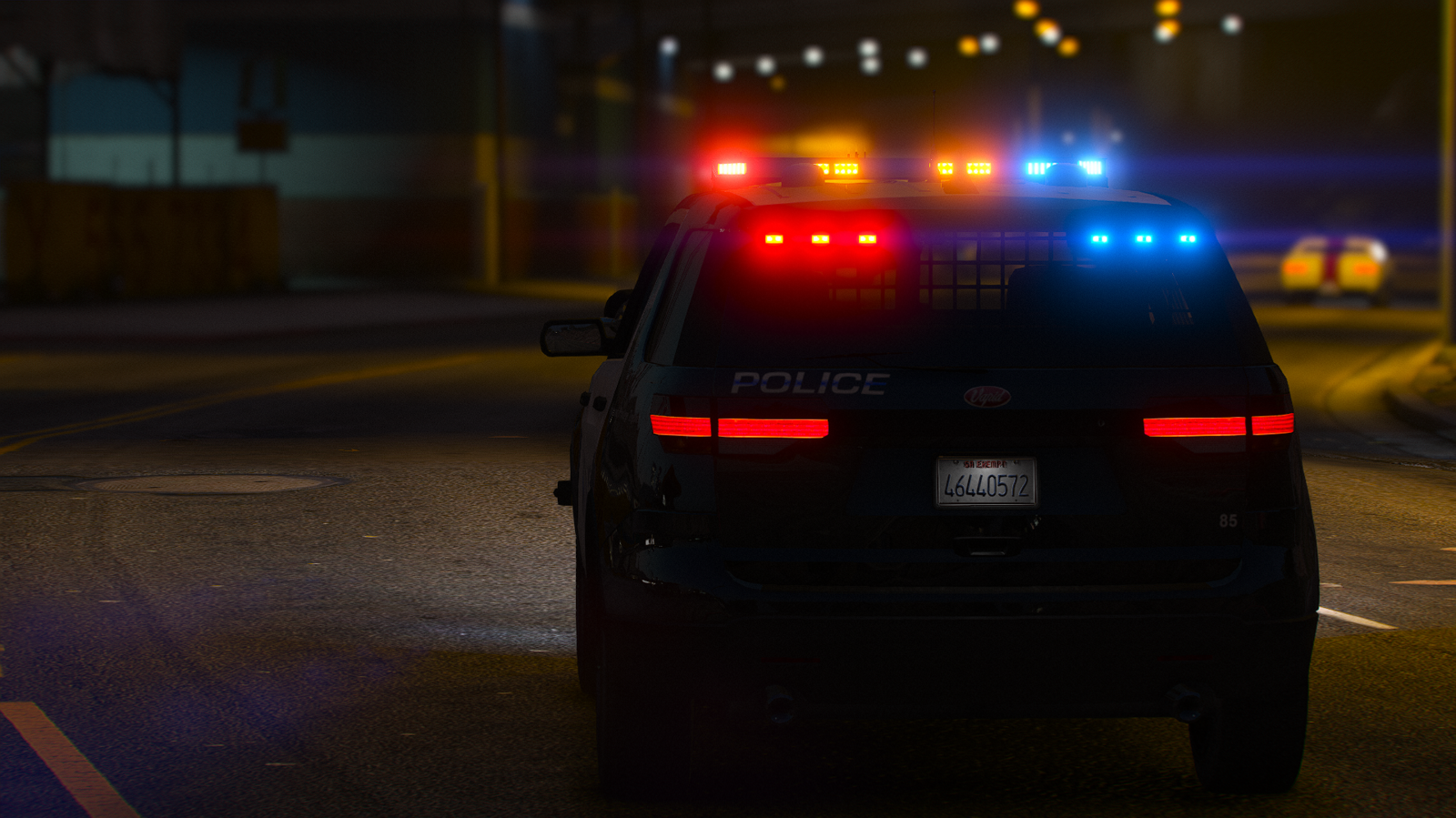
Banner: Vapid Scout by Crizby