
AlexLCPDFR
Members
-
Joined
-
Last visited
Everything posted by AlexLCPDFR
-
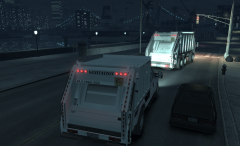
From the album: Ford F-350 Garbage
Young garbage truck following it's mother on it's first hunt for trash. -
-
-
Thank you!
-
New York Department of Sanitation skins for Sheriff Van Dyck's Ford F-250 and Scyattica's ELS Speedo. All credits given in file Please leave anything you'd like changed.
-
Okay I am very new to modeling, not even a week into it. I have encountered a problem with my first car where when installed, no cars randomly spawn and I cannot manually spawn any cars via the trainer. The message said is "Cannot Spawn Vehicle, check the model" for every car. I have pictures of the car and would like to know any immediate problems or suggestions. Thanks
-
-
I want to know how to set the Mouse Button 3 in the els.ini, would I write Mouse Button 4 or MB4 or what did you write?
-
I use ELS v7 and I don't like having my siren button as H. I have a mouse with a Mouse Button 4 on it and I reset GTA IV horn to that but I wanna know if I can set that in the els.ini. Also if you can make certain cars ELS-H because I have a car that should be like that but I can't change it. Thanks!
-
-
I would really like my towns Fire Chief Ford Expedition I think. Here are some pics: http://www.google.com/imgres?start=785&um=1&rlz=1C1CHMO_enUS538US538&hl=en&biw=1829&bih=888&tbm=isch&tbnid=UtqWyLPCkKnmeM:&imgrefurl=http://www.emtbravo.net/index.php/topic/39389-croton-fd-new-chiefs-vehicle/&docid=M4DGGoro6rmUyM&imgurl=http://www.emtbravo.net/uploads/monthly_11_2010/post-34-0-14089700-1289690848.jpg&w=1024&h=575&ei=5MmrUa3uHcWx0QGMiIFw&zoom=1&ved=1t:3588,r:94,s:700,i:286&iact=rc&dur=272&page=20&tbnh=161&tbnw=293&ndsp=36&tx=170&ty=62 http://www.google.com/imgres?start=750&um=1&rlz=1C1CHMO_enUS538US538&hl=en&biw=1829&bih=888&tbm=isch&tbnid=fRnMlwjqHiKmRM:&imgrefurl=http://www.emtbravo.net/index.php/topic/39389-croton-fd-new-chiefs-vehicle/&docid=M4DGGoro6rmUyM&imgurl=http://www.emtbravo.net/uploads/monthly_11_2010/post-34-0-29654400-1289690829.jpg&w=1024&h=685&ei=5MmrUa3uHcWx0QGMiIFw&zoom=1&ved=1t:3588,r:73,s:700,i:223&iact=rc&dur=160&page=19&tbnh=184&tbnw=275&ndsp=35&tx=121&ty=112 http://www.google.com/imgres?start=750&um=1&rlz=1C1CHMO_enUS538US538&hl=en&biw=1829&bih=888&tbm=isch&tbnid=j5kiIicadkH94M:&imgrefurl=http://www.emtbravo.net/index.php/topic/39389-croton-fd-new-chiefs-vehicle/&docid=M4DGGoro6rmUyM&imgurl=http://www.emtbravo.net/uploads/monthly_11_2010/post-34-0-82167300-1289690835.jpg&w=1024&h=719&ei=5MmrUa3uHcWx0QGMiIFw&zoom=1&ved=1t:3588,r:68,s:700,i:208&iact=rc&dur=226&page=19&tbnh=177&tbnw=231&ndsp=35&tx=127&ty=106 http://www.google.com/imgres?start=750&um=1&rlz=1C1CHMO_enUS538US538&hl=en&biw=1829&bih=888&tbm=isch&tbnid=G3Hh1CQD3mYBwM:&imgrefurl=http://www.emtbravo.net/index.php/topic/39389-croton-fd-new-chiefs-vehicle/&docid=M4DGGoro6rmUyM&imgurl=http://www.emtbravo.net/uploads/monthly_11_2010/post-34-0-45909800-1289690842.jpg&w=1024&h=685&ei=5MmrUa3uHcWx0QGMiIFw&zoom=1&ved=1t:3588,r:75,s:700,i:229&iact=rc&dur=216&page=19&tbnh=184&tbnw=275&ndsp=35&tx=131&ty=57 Thanks!
-
 Omg that looks so good
 -
That's hot...
-
The chevy replaces the polpatriot and the mobile command replaces the pstockade. Thanks so much.http://www.lcpdfr.com/uploads/monthly_10_2012/post-45006-0-58435900-1349702561.jpghttp://www.lcpdfr.com/uploads/monthly_10_2012/post-45006-83119.jpg
-
This looks totally awesome. Can you PLEASE make a video on how to install. I really want this but I'm stumped.
- 9 comments
- 2 reviews