
dominikexe
Members
-
Joined
-
Last visited
Everything posted by dominikexe
-
Hello @ckole3, You should always place files for replace vehicles at least in the last “full” patchday with new vehicle files. At the moment, this would be patchday28ng, for example. But that is a separate topic and should be dealt with in a separate post. Please mark the solution post, to close this topic. You can open a new topic with your "replace problem" in this forum.
-
Hello @rovedx, can you please send your last RagePluginHook.log and ScriptHookV.log from your root directory again? Also your EUPMenu.ini from “Grand Theft Auto V\plugins\EUPMenu.ini Also be sure that you are using the latest RAGENativeUI. You can find it here: https://github.com/alexguirre/RAGENativeUI/releases/download/1.9.2/RAGENativeUI.zip
-
Hello @Wiktor6501, try the following steps: Go to your GTA main folder -> right click -> properties and make sure all hooks are there for your user. Right click the RagePluginHook.exe and click "Run as administrator". Try to start and verify this step. Right click the RagePluginHook.exe -> properties -> tab "compatibility -> check the box "run in compatibility mode". Try to start and verify this step. I look forward to your feedback. If you have any further questions, please do not hesitate to contact me.
-
Hello @rovedx, thank you for your message. Please check your configuration of EUP Menu. There seems to be an error here. Otherwise, simply reinstall EUPMenu and replace all configuration files with the originals. I look forward to your feedback. If you have any further questions, please do not hesitate to contact me.
-
Hello @myers223, let's try temporarily deactivating your mods folder and see if the story mode starts again. Please rename the mods folder in your main directory to “_mods”. If GTA 5 then starts again, you should try to undo your last changes in the mods folder. This will allow you to isolate and find the error step by step. I look forward to your feedback. If you have any further questions, please do not hesitate to contact me.
-
Hello @pohlow, Perhaps you could have the game files checked via your launcher. This is to prevent an error from creeping in and preventing the game from starting properly. I look forward to your feedback. If you have any further questions, please do not hesitate to contact me.
-
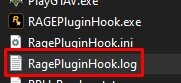
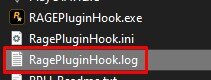
Hello @Rewix321, no problem. Open your Grand Theft Auto V root directory. In it you will find a file with the name “RagePluginHook.log”. You can simply drag and drop this file into comment that you are using to reply. If you don't know where your root directory is, you can look in the properties of the respective launcher (e.g. Steam or RockstarGamesLauncher). I look forward to your feedback. If you have any further questions, please do not hesitate to contact me.
-
You're welcome
-
Hello @olesi, please replace all LSPDFR files with the latest update. Use the “manual installation” for this. Unfortunately, an error has crept in here somewhere. I look forward to your feedback. If you have any further questions, please do not hesitate to contact me.
-
Hello @Minhhuy1115, in the meantime, i've found the solution. Please delete/remove the plugin "CalloutManager". Then it should work again. I look forward to your feedback. If you have any further questions, please do not hesitate to contact me.
-
Hello @Gho2t, Please update your LSPDFR with the manual install. Replace all files in the root directory. Check whether the following files are still present in the root directory after updating LSPDFR and starting GTA 5: EasyHook.dll, EasyHook64.dll, EasyLoad.dll
-
Hello @olesi, Then please delete the following plugins as a precaution. These are no longer being developed by Albo1125 and no longer support the latest LSPDFR version: Police SmartRadio Traffic Policer Arrest Manager and remove the Albo1125.Common.dll out of the root directory. A plugin may be trying to access LSPDFR+.
-
Hello @Shuvo Mahmmud, From your log I can see the following tasks for you: Update your Grand Theft Auto V. (from 1.0.3028.0 to 1.0.3274.0) Update your LSPDFR/RagePluginHook. (from v1.106.1330.16514 to v1.111.1341.16580) Red = your version Green = the newest version You must start the Grand Theft Auto V update in your respective launcher. You can find the latest version of LSPDFR (including RagePluginHook) - MANUAL INSTALL - here: I look forward to your feedback. If you have any further questions, please do not hesitate to contact me.
-
You're welcome
-
Hello @olesi, finally, an error was issued by LSPDFR+. Please check the installation of the mentioned plugin. LSPDFR+ was last updated on June 28, 2019. Support is also no longer provided for the newer LSPDFR versions. All plugins should always be labeled with the latest version so that a smooth gaming experience can be guaranteed. I recommend that you remove the LSPDFR+ plugin to ensure a safe and smooth gaming experience.
-
Hello @Liwiu, Sometimes it happens that you just have to wait a little. You can also try to close the RockstarGamesLauncher in the TaskManager or restart the entire computer.
-
Hello @AllvinK, please rename the mods folder to “_mods” to temporarily deactivate it and restart your game. There is probably an error or a file in it is corrupt. If GTA5 starts without the mods folder, you should try to undo the last changes in the mods folder. Otherwise you will have to create a new mods folder. If GTA 5 does not start without the mods folder either, please check/verify your game files in the launcher (Steam or Rockstar Games Launcher.)
-
Hello @pohlow, try starting GTA 5 not via Steam, but directly via the RockstarGamesLaunher.
-
Hello @matyslav, try to start your gta5 via Rockstar Games Launcher. When GTA 5 starts, switch back to the file explorer and start the RagePluginHook.exe.
-
Hello @avengerz916, please rename the mods folder to “_mods” to temporarily deactivate it and restart your game. There is probably an error or a file in it is corrupt. If GTA5 starts without the mods folder, you should try to undo the last changes in the mods folder. Otherwise you will have to create a new mods folder. If GTA 5 does not start without the mods folder either, please check/verify your game files in the launcher (Steam or Rockstar Games Launcher.)
-
You're welcome
-
Hello @tixium, You could try the following: Install HeapAdjuster to “expand” the volatile memory. https://files.gta5-mods.com/uploads/heapadjuster/225d5d-HeapAdjuster-ini.zip Update the gameconfig if you have also replaced or added vehicles. https://files.gta5-mods.com/uploads/gta-5-gameconfig-300-cars/f027e2-GTAV Config v33.rar Add an exception in your antivirus program so that the Grand Theft Auto V root directory is excluded from the (live) scan. I look forward to your feedback. If you have any further questions, please do not hesitate to contact me.
-
Could you please load into the game and go on duty and send me the RPH.log? ^^ Then I can also see which plugins are loading and whether there are any problems.
-
Hello @Ex in the Vatican, you can try it with the newest Update of SHVDN. https://github.com/scripthookvdotnet/scripthookvdotnet-nightly/releases/download/v3.6.0-nightly.114/ScriptHookVDotNet-v3.6.0-nightly.114.zip
-
Hello @kalebxyu, Your Grand Theft Auto V main directory always contains the latest and most up-to-date log. (not in the Logs folder). The file “RagePluginHook.log” can be found directly in your root directory.