


.png.5e0a7df30b2c34e443a7ddb5a0176512.png)
.png.c359012c78e40172fead9e56cf7271f1.png.98f7789cfe12afde8c16bd4810136f4e.png)
Charles Stobe
Members
-
Joined
-
Last visited
Everything posted by Charles Stobe
-
-
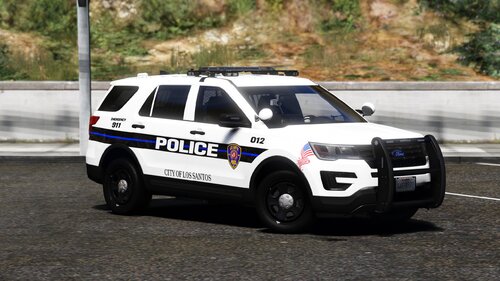
copy.thumb.jpg.98d77a03c6981ee78c0522903a9467b7.jpg) The cars work just fine people, some of the y'all on this website are just too dumb to understand the process, which is actually quite easy, of installing them.
The cars work just fine people, some of the y'all on this website are just too dumb to understand the process, which is actually quite easy, of installing them.- 15 comments
- 3 reviews
-
-

- 3
-
-
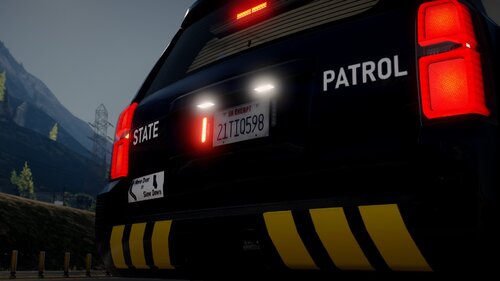 what in the ever living fuck.
 -
.thumb.png.9a66bdcc0b1a77cae2ea6de3eeb86b6d.png) 🤪
🤪 -
.thumb.png.88f3faa31951486e3b72a29f212cf404.png) any other three of four digit number
any other three of four digit number -
.thumb.png.d573931c4b08f940aa00cf7aa46d323c.png) Underwoods
Underwoods -
I was never making, nor planning to make NYPD.
-
Its literally a five second google search. If you can't figure that out, then you probably shouldn't be modding gta v. 😘
-
you have confecting carcols, thats not the els you'd need to go change the siren ID in the carcols meta and the carvariations meta
-
Thats how bright they are for me too and I like it that way so thats how its gonna stay, sorry
-
-
...
-
Pretty easy to figure it out but, whatever <Item>dlcpacks:/SAST/</Item>
-
This is just a quick release since I haven't released anything in a little while. The explorer here is just the first of many more state patrol vehicles too come in a pack. To get them you'd need to join my discord (https://discord.gg/jc2H9SwcwH), and my patron from that point forward. The rest will be released two months after the entire pack is released, for the early access people, and to work out any kinks that may be present. Included DLC XML SAST 735B
-
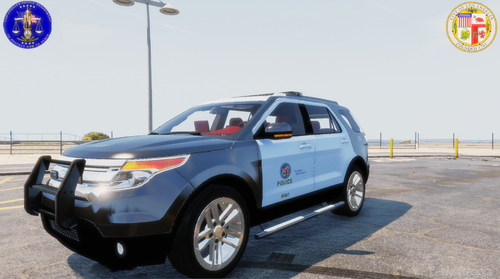 yea.. uhhhh, I couldn't even tell.
 -
Didn't know LAPD was this 🔥
-
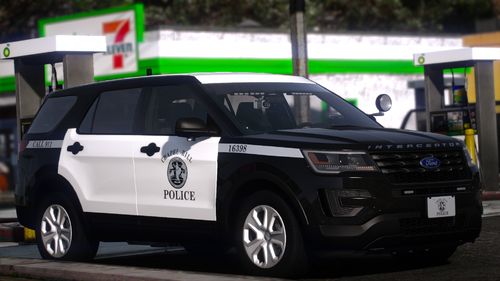 Why would it have an all blue option when they are non-lore... love you floyd 😘
- 23 comments
- 3 reviews
-
-
- 1
-
-
-
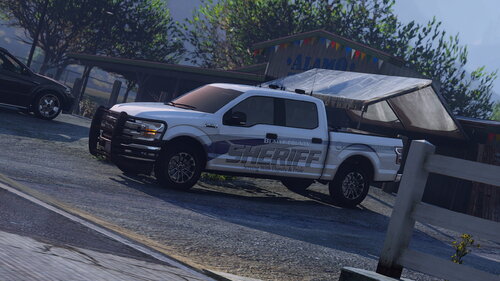
.png.43d636405efaaeffaa8aba247d6a63e0.png) Passaic County, New Jersey Sheriff's Office Car 667
Passaic County, New Jersey Sheriff's Office Car 667
-
.png.40d858f6d4a53262e9f1152491d2b36c.png) Passaic County, New Jersey Sheriff's Office Car 667
Passaic County, New Jersey Sheriff's Office Car 667
-
.png.850e78f2715fe03e33027611131e6ef6.png) Passaic County, New Jersey Sheriff's Office Car 667
Passaic County, New Jersey Sheriff's Office Car 667
-
.png.19eab88e6a55c80f798218c819912024.png) Passaic County, New Jersey Sheriff's Office Car 667
Passaic County, New Jersey Sheriff's Office Car 667
-
.png.90b7734530e83c31cee18ae04b09b031.png) Passaic County, New Jersey Sheriff's Office Car 667
Passaic County, New Jersey Sheriff's Office Car 667
-
.png.219cea1bb7758d5229d2eeb4f646eb9a.png) Passaic County, New Jersey Sheriff's Office Car 667
Passaic County, New Jersey Sheriff's Office Car 667
-
.png.d28aba6618bb21ce0746dfcb06a0a90b.png) Passaic County, New Jersey Sheriff's Office Car 667
Passaic County, New Jersey Sheriff's Office Car 667
-
.png.50450ca5943e04415b51eee0534cc3b5.png) Passaic County, New Jersey Sheriff's Office Car 667
Passaic County, New Jersey Sheriff's Office Car 667
-
.png.59f94f8fd2c889a767f16dd983b31f8f.png) Passaic County, New Jersey Sheriff's Office Car 667
Passaic County, New Jersey Sheriff's Office Car 667
-
-
From the album: Passaic County Sheriff's Office WIP
If you'd like to find where you can get access to WIP cars like these, some of which won't be released, join my Discord server, then my patreon, where you can find this exact car! https://discord.gg/jc2H9SwcwH -
From the album: Passaic County Sheriff's Office WIP
If you'd like to find where you can get access to WIP cars like these, some of which won't be released, join my Discord server, then my patreon, where you can find this exact car! https://discord.gg/jc2H9SwcwH -
From the album: Passaic County Sheriff's Office WIP
If you'd like to find where you can get access to WIP cars like these, some of which won't be released, join my Discord server, then my patreon, where you can find this exact car! https://discord.gg/jc2H9SwcwH -
From the album: Passaic County Sheriff's Office WIP
If you'd like to find where you can get access to WIP cars like these, some of which won't be released, join my Discord server, then my patreon, where you can find this exact car! https://discord.gg/jc2H9SwcwH -
From the album: Passaic County Sheriff's Office WIP
If you'd like to find where you can get access to WIP cars like these, some of which won't be released, join my Discord server, then my patreon, where you can find this exact car! https://discord.gg/jc2H9SwcwH -
From the album: Passaic County Sheriff's Office WIP
If you'd like to find where you can get access to WIP cars like these, some of which won't be released, join my Discord server, then my patreon, where you can find this exact car! https://discord.gg/jc2H9SwcwH -
From the album: Passaic County Sheriff's Office WIP
If you'd like to find where you can get access to WIP cars like these, some of which won't be released, join my Discord server, then my patreon, where you can find this exact car! https://discord.gg/jc2H9SwcwH
.png.c359012c78e40172fead9e56cf7271f1.thumb.png.dd2d1df9194ea99617026ff6dbab40c9.png)
copy.thumb.jpg.98d77a03c6981ee78c0522903a9467b7.jpg)
.thumb.png.9a66bdcc0b1a77cae2ea6de3eeb86b6d.png)
.thumb.png.88f3faa31951486e3b72a29f212cf404.png)
.thumb.png.d573931c4b08f940aa00cf7aa46d323c.png)

.png.43d636405efaaeffaa8aba247d6a63e0.png)
.png.40d858f6d4a53262e9f1152491d2b36c.png)
.png.850e78f2715fe03e33027611131e6ef6.png)
.png.19eab88e6a55c80f798218c819912024.png)
.png.90b7734530e83c31cee18ae04b09b031.png)
.png.219cea1bb7758d5229d2eeb4f646eb9a.png)
.png.d28aba6618bb21ce0746dfcb06a0a90b.png)
.png.50450ca5943e04415b51eee0534cc3b5.png)
.png.59f94f8fd2c889a767f16dd983b31f8f.png)